
Billing & Pricing
The Warehouse 3PL billing system is activity-based: every warehouse operation automatically generates a Billing Transaction record that captures the service performed, the quantity, and the charge. This creates a complete, auditable log of all billable events that can be rolled up into client invoices.
How Billing Works
Billing Transactions are created automatically — warehouse staff do not need to do anything special. Every time a Receiving is submitted, a Wave is released, a Pack Task is completed, etc., the billing fires in the background.
INFO
Billing Transactions are append-only. They are never edited after creation. If a correction is needed, a reversing transaction (negative qty) is created and a new transaction with the correct values is added.
Activity Types
| Activity Type | Triggered By | Billing Unit | Description |
|---|---|---|---|
| Receiving | Receiving submitted | Per unit received | Unloading, counting, and checking inbound goods |
| Putaway | Putaway Task completed | Per unit put away | Moving goods from staging to storage bins |
| Pick | Pick Task completed | Per unit picked | Selecting items from bins for an order |
| Pack | Pack Task completed | Per order line | Packing items into cartons/pallets |
| Ship | Pack Task completed | Per shipment | Generating Delivery Note, labeling, handoff to carrier |
| Storage | Scheduled (daily/monthly) | Per pallet per day/month | Ongoing storage occupancy charge |
| Returns | Return Receiving | Per unit returned | Processing inbound customer returns |
| Special Handling | Manual entry | Per occurrence | Non-standard services (re-labeling, kitting, etc.) |
Rate Card Setup
A Rate Card defines the per-activity rates for a specific client. See Master Data Setup → Rate Card for creation instructions.
Rate Lookup Logic
When a Billing Transaction is created, the system looks up the rate as follows:
- Find the active Rate Card for the client (Effective From ≤ today, not expired)
- Find the row in the Rate Card matching the Activity Type
- Apply the Rate and UOM from that row
- If no matching row, rate = 0.00 and a warning is flagged
WARNING
If a client has no active Rate Card, or if an activity type is missing from the Rate Card, the Billing Transaction is created with Amount = 0 and marked as "Rate Missing". Review and correct these before generating invoices.
Rate Card Versioning
Rate Cards are versioned by Effective From date. To update rates for a client:
- Create a new Rate Card with the new rates
- Set the Effective From to the date the new rates take effect
- Submit the new Rate Card
- The old Rate Card remains valid for transactions before the new effective date
Billing Transactions
Each Billing Transaction record captures:
| Field | Description |
|---|---|
| Client | The 3PL client being charged |
| Activity Type | What was done |
| Reference Doctype | Document that triggered this (Receiving, Pack Task, etc.) |
| Reference Name | ID of the triggering document |
| Transaction Date | Date the activity occurred |
| Qty | Number of units / shipments / lines |
| UOM | Unit of measure (Each, Order Line, Shipment) |
| Rate | Rate from Rate Card at time of billing |
| Amount | Qty × Rate |
| Currency | Client billing currency |
| Invoice | Link to Invoice (populated when invoiced) |
| Status | Pending / Invoiced / Cancelled |
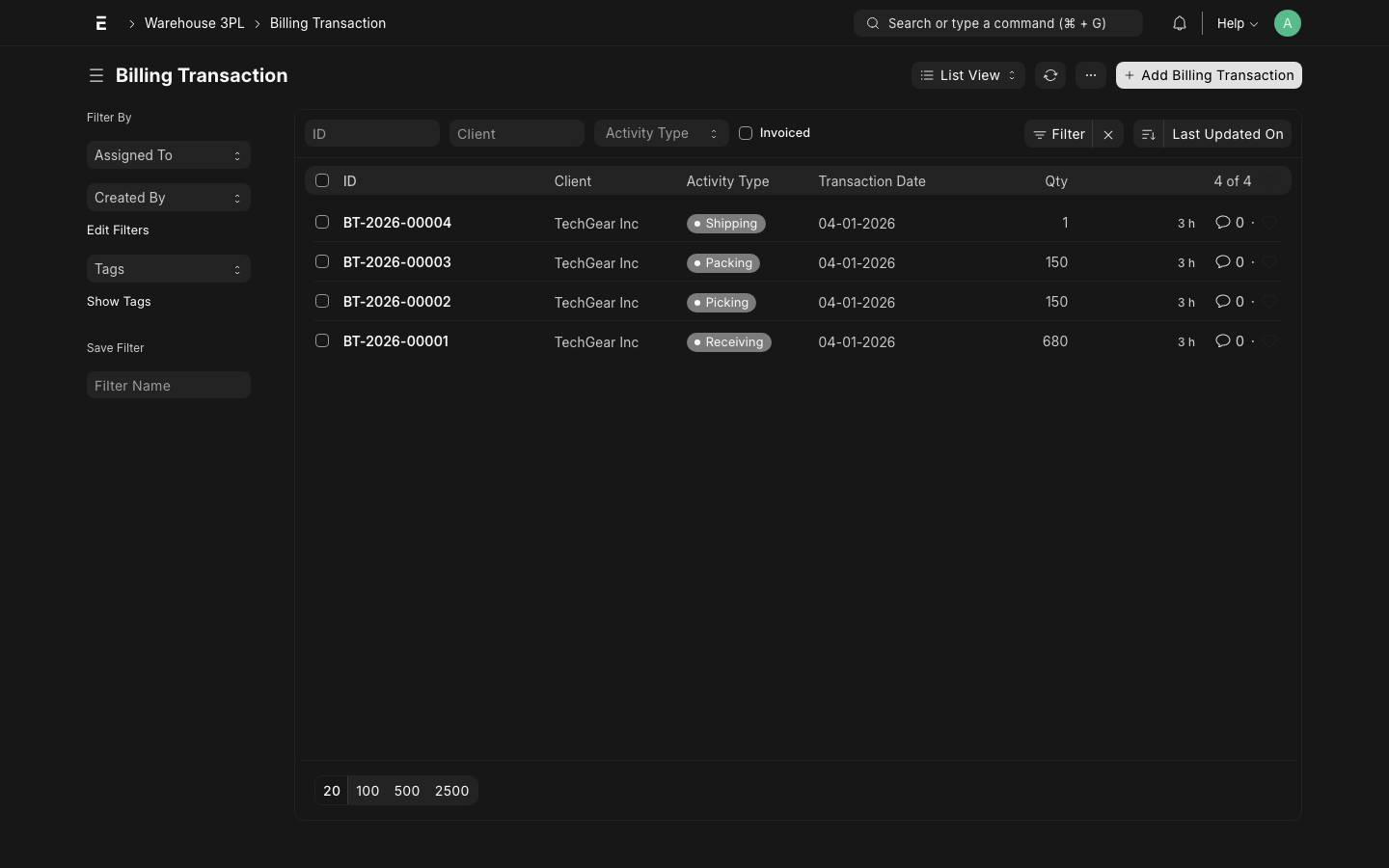
Filtering and Review
Before generating invoices, review pending Billing Transactions:
Warehouse 3PL → Billing Transaction
Filter: Client = [Client Name], Status = Pending, Date range = [month]
Look for:
- Transactions with Amount = 0 (rate missing)
- Unusually high quantities (data entry errors)
- Missing transactions (activity occurred but no billing created)
Invoice Generation
INFO
Full automated invoice generation is on the roadmap. Currently, invoices are generated manually from the Billing Transaction summary.
Current Process (Manual)
- At month end, go to Warehouse 3PL → Reports → Monthly Billing Summary
- Filter by Client and Month
- Review the summary — total by activity type
- Create an ERPNext Sales Invoice:
- One line per activity type
- Qty = total units billed for the period
- Rate = from Rate Card
- Link the invoice back to the Billing Transactions (set Invoice field)
- Submit and send the invoice
Planned: Automated Invoice Generation
The planned automation will:
- Run on the 1st of each month (or on demand)
- Group all Pending Billing Transactions by client
- Create a Sales Invoice per client with line items by activity
- Mark all included Billing Transactions as Invoiced
- Send the invoice by email to the client's billing contact
Example: TechGear Inc Billing
The test dataset ships with activity data for TechGear Inc. Here is a sample month's billing:
Inbound Activity
| Date | Activity | Qty | Rate | Amount |
|---|---|---|---|---|
| Jan 5 | Receiving | 680 units | $0.50 | $340.00 |
| Jan 5 | Putaway | 680 units | $0.25 | $170.00 |
Outbound Activity
| Date | Activity | Qty | Rate | Amount |
|---|---|---|---|---|
| Jan 8 | Pick | 25 units | $0.35 | $8.75 |
| Jan 8 | Pack | 3 lines | $1.50 | $4.50 |
| Jan 8 | Ship | 1 shipment | $5.00 | $5.00 |
| Jan 12 | Pick | 15 units | $0.35 | $5.25 |
| Jan 12 | Pack | 2 lines | $1.50 | $3.00 |
| Jan 12 | Ship | 1 shipment | $5.00 | $5.00 |
Storage
| Period | Pallets | Days | Rate | Amount |
|---|---|---|---|---|
| Jan 1–31 | 14 pallets | 31 days | $0.50/pallet/day | $217.00 |
January Total
| Category | Amount |
|---|---|
| Inbound (Receiving + Putaway) | $510.00 |
| Outbound (Pick + Pack + Ship) | $31.50 |
| Storage | $217.00 |
| Total Due | $758.50 |
Special Handling Charges
For non-standard services not covered by standard activity types, create a Manual Billing Transaction:
- Go to Warehouse 3PL → Billing Transaction → New
- Set Client, Activity Type = "Special Handling"
- Enter Qty, Rate, and a Description
- Submit
Use this for:
- Re-labeling or re-packaging
- Kitting / assembly services
- Hazmat surcharges
- After-hours or rush handling fees
- Returns processing (complex)