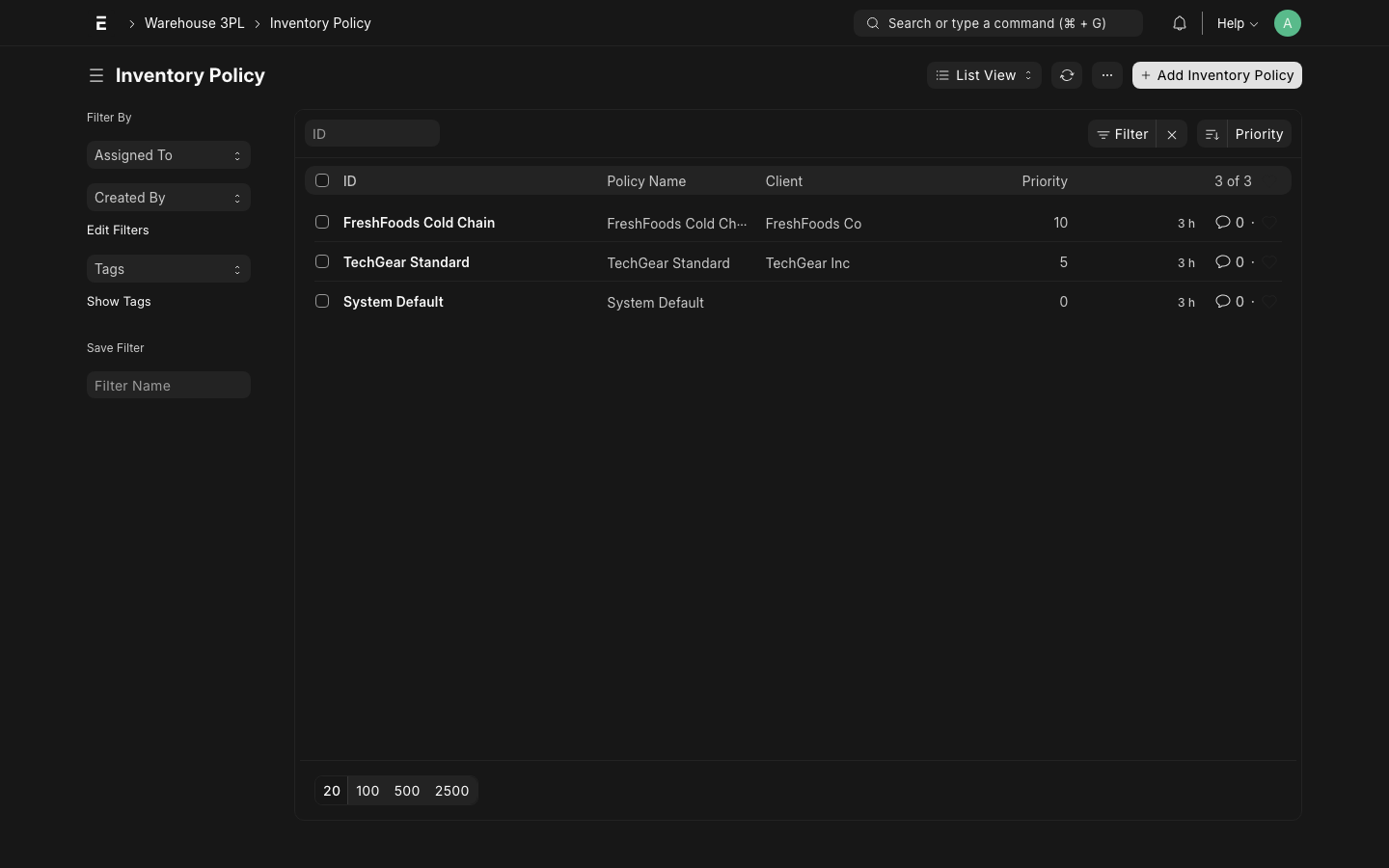
Inventory Policy Engine
The Inventory Policy Engine is the configurable rule system that controls how the warehouse handles stock. Instead of hard-coding picking methods, putaway rules, and QC requirements into the application, these behaviors are driven by Inventory Policy records — one per client, zone, item group, or combination thereof.
What It Does
The Policy Engine provides configurable control over:
| Decision | Without Policy Engine | With Policy Engine |
|---|---|---|
| Picking method | Hard-coded FIFO | FIFO / FEFO / LIFO / Manual per client |
| Putaway zone | Any available bin | Preferred zone per item group |
| QC on receipt | Always on / always off | Per client, per item category |
| Lot tracking | System-wide setting | Per client, per item |
| Temperature compliance | Hard-coded zones | Flexible per policy |
| Expiry management | Not enforced | FEFO enforced for cold chain |
This means you can run:
- TechGear Inc on FIFO with no lot tracking, no QC
- FreshFoods Co on FEFO with mandatory lot tracking, temperature QC on receipt
- All clients with a system default that covers anything not explicitly configured
...all within the same warehouse and the same application.
Resolution Priority
When the system needs to apply a policy (e.g., to allocate stock for a Client Order), it resolves the most specific applicable policy using a 5-tier priority:
| Priority | Matching Dimensions | Example | |----------|--------------------|---------|| | 1 (Highest) | Client + Item Group + Zone | FreshFoods + Food + Cold Store | | 2 | Client + Item Group | FreshFoods + Food | | 3 | Client + Zone | FreshFoods + Cold Store | | 4 | Client only | FreshFoods (all items, all zones) | | 5 (Lowest) | System default | No client set (fallback for all) |
The system always uses the first match going from priority 1 down to priority 5. If no policy matches at any level, the transaction fails with a configuration error.
TIP
Start with a System Default policy (no Client, no Item Group, no Zone) that sets safe defaults. Then add client-specific overrides only where behavior needs to differ.
Resolution Example
Given these policies:
| Policy | Client | Item Group | Zone | Picking Method |
|---|---|---|---|---|
| P1 | FreshFoods | Food | Cold Store | FEFO |
| P2 | FreshFoods | Food | — | FEFO |
| P3 | FreshFoods | — | — | FIFO |
| P4 | — | — | — | FIFO (default) |
For a FreshFoods order for a Food item in the Cold Store zone, the engine resolves P1 (most specific match). For a FreshFoods order for a non-Food item, it resolves P3.
Policy Fields Reference
Identification
| Field | Type | Description |
|---|---|---|
| Policy Name | Data | Unique identifier for this policy |
| Client | Link → Customer | Scope to a specific 3PL client. Leave blank for system default |
| Item Group | Link → Item Group | Scope to a specific item group (e.g., Food, Electronics) |
| Warehouse Zone | Link → Warehouse | Scope to a specific zone |
| Active | Checkbox | Enable / disable this policy without deleting it |
| Notes | Text | Description of what this policy is for |
Picking Rules
| Field | Type | Description |
|---|---|---|
| Picking Method | Select | FIFO — First In First Out (oldest batch first) FEFO — First Expired First Out (soonest expiry first) LIFO — Last In First Out Manual — No system allocation; operator decides |
| Enforce Lot Selection | Checkbox | If Yes, picking must be done by specific lot number |
| Allow Mixed Lots | Checkbox | If No, a single pick task cannot span multiple batches |
| Min Expiry Days | Int | Do not allocate stock expiring within N days |
Putaway Rules
| Field | Type | Description |
|---|---|---|
| Preferred Zone | Link → Warehouse | Direct putaway to this zone by default |
| Fallback Zone | Link → Warehouse | Use this zone if preferred zone is full |
| Max Fill Percent | Percent | Don't assign a bin above this fill level |
| Allow Mixed Items | Checkbox | If No, a bin can only hold one item/client |
| Allow Mixed Clients | Checkbox | Must be No for client isolation (recommended) |
Quality Control
| Field | Type | Description |
|---|---|---|
| QC on Receipt | Checkbox | If Yes, all receivings require QC step before putaway |
| QC on Dispatch | Checkbox | If Yes, all outbound require QC check before ship |
| Temperature Check | Checkbox | Record and validate temperature on inbound |
| Min Temperature | Float | Acceptable minimum arrival temperature (°C) |
| Max Temperature | Float | Acceptable maximum arrival temperature (°C) |
Lot & Expiry Control
| Field | Type | Description |
|---|---|---|
| Require Lot on Receipt | Checkbox | Lot number must be recorded during Receiving |
| Require Expiry on Receipt | Checkbox | Expiry date must be recorded for every batch |
| Expiry Warning Days | Int | Flag stock expiring within N days in reports |
| Auto-Quarantine Expired | Checkbox | Automatically move expired stock to Quarantine |
Example Scenarios
Scenario 1: FreshFoods Co (FEFO Cold Chain)
FreshFoods stores refrigerated food products that have strict expiry requirements.
Policy Configuration:
Client:             FreshFoods Co
Item Group:         Food
Zone:               (all)
Picking Method:     FEFO
Enforce Lot:        Yes
Allow Mixed Lots:   No
Min Expiry Days:    7
QC on Receipt:      Yes
Temperature Check:  Yes
Min Temperature:    2°C
Max Temperature:    8°C
Require Lot:        Yes
Require Expiry:     Yes
Expiry Warning:     14 days
Auto-Quarantine:    Yes
Effect:
- Every receiving must record lot number and expiry date
- Temperature on arrival must be 2–8°C; out-of-range goes to Quarantine
- QC inspection required before putaway
- Orders always pick the batch expiring soonest first
- Stock expiring within 7 days is not allocated to orders
- Stock reaching its expiry date is auto-quarantined overnight
Scenario 2: TechGear Inc (FIFO Standard)
TechGear stores electronics — no temperature requirements, no expiry dates, standard FIFO.
Policy Configuration:
Client:             TechGear Inc
Item Group:         (all)
Zone:               (all)
Picking Method:     FIFO
Enforce Lot:        No
Allow Mixed Lots:   Yes
QC on Receipt:      No
Temperature Check:  No
Require Lot:        No
Require Expiry:     No
Effect:
- Receivings require no special lot or expiry data
- No QC step — goods go straight to putaway after receiving
- Orders pick the oldest stock first (by receipt date)
- Multiple batches can be picked in a single Pick Task
- No expiry monitoring
Scenario 3: System Default
A catch-all policy for any client or item not matched by a specific policy.
Client:             (blank — system default)
Item Group:         (blank)
Zone:               (blank)
Picking Method:     FIFO
QC on Receipt:      No
Temperature Check:  No
Require Lot:        No
WARNING
Always maintain a system default policy. Without it, any unmatched combination of client/item/zone will cause a configuration error at transaction time.
Managing Policies
Creating a New Policy
- Go to Warehouse 3PL → Inventory Policy → New
- Enter a descriptive Policy Name
- Set the scope (Client, Item Group, Zone — leave blank for broader scope)
- Configure picking, putaway, QC, and lot fields
- Save and Submit
Testing a Policy
Before going live with a new policy configuration, test it:
- Use Tools → Policy Resolver to input a Client + Item + Zone combination
- The tool shows which policy would be resolved and what rules would apply
- Verify the result is what you expect
Deactivating a Policy
To temporarily disable a policy without deleting it:
- Open the policy
- Uncheck Active
- Save
The system will skip this policy during resolution and fall through to the next match.