
ASN (Advance Shipment Notice)
What is an ASN?
An ASN (Advance Shipment Notice) is a heads-up from a client that goods are coming to your warehouse. It tells you what is arriving, how much, and when to expect it.
Think of it like a delivery notification. Before a shipment arrives at your dock, the client tells you what is on the truck so you can prepare.
When Do You Create an ASN?
Create an ASN when a client tells you about an incoming shipment. This usually happens through:
- A phone call or email from the client
- The client entering it through their portal
- A purchase order from the client's system
Creating from a Warehouse Job Record
If you are tracking this shipment as part of a Warehouse Job Record:
- Open the Job Record
- Click Create → Create ASN in the top toolbar
- The system auto-fills the Client and Warehouse Job fields
- Just add the items and submit
This links the ASN to the job, so everything shows up in the Job's dashboard.
How to Create an ASN
Step 1: Open the ASN list
Type ASN in the search bar and click on ASN List.
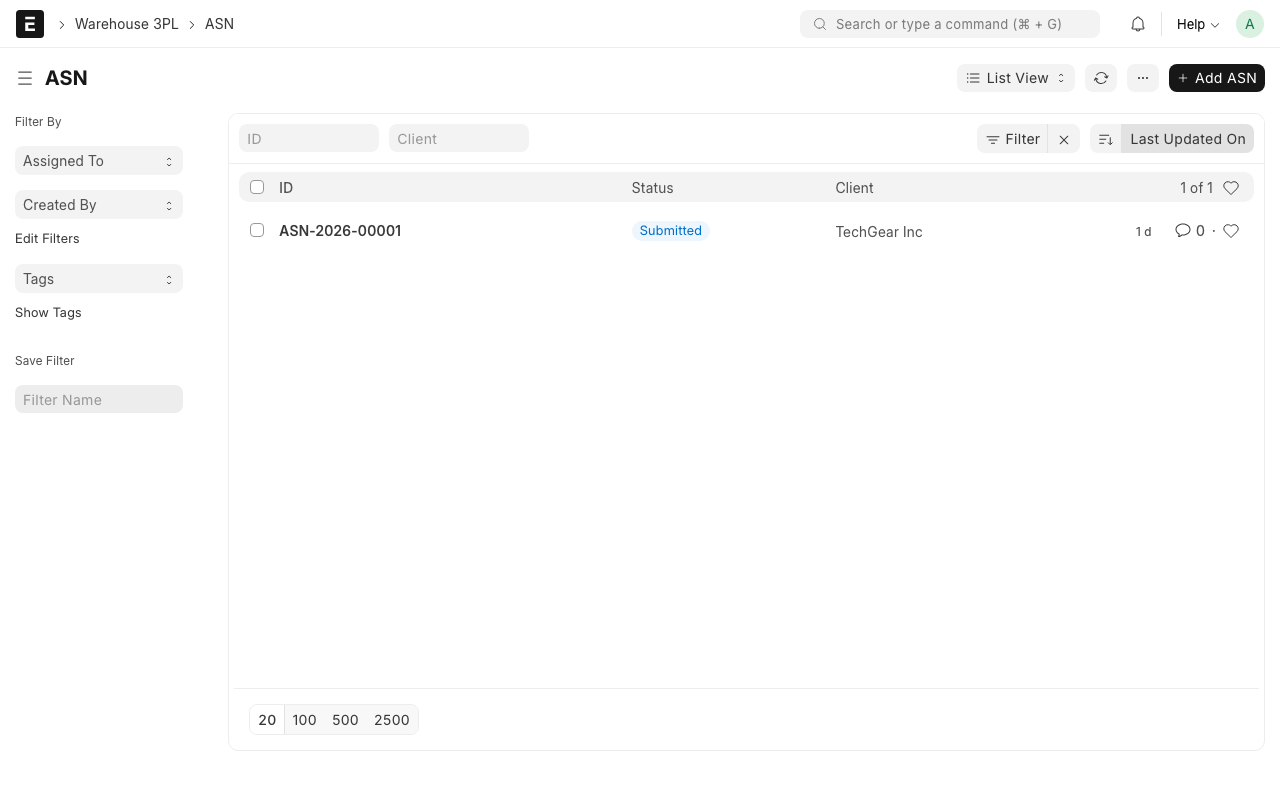
Step 2: Click "Add ASN"
Click the + Add ASN button in the top-right corner.
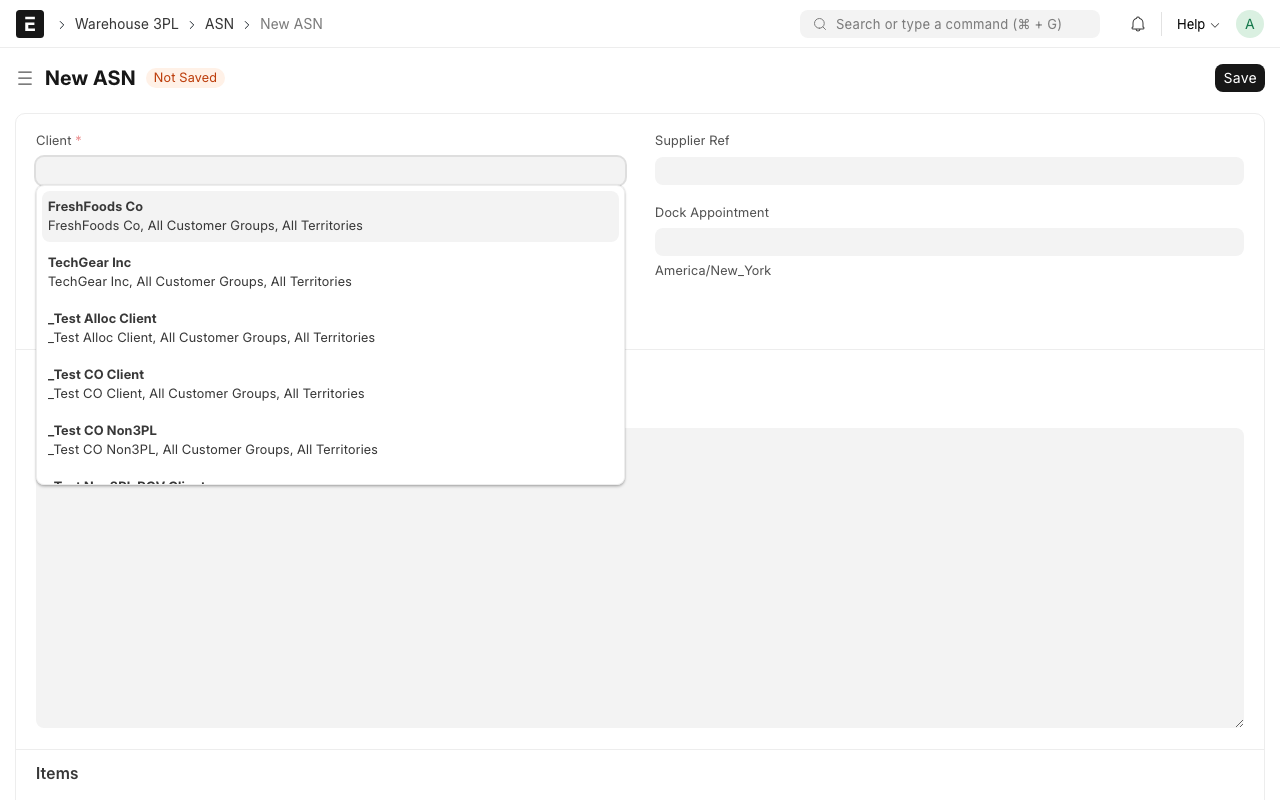
Step 3: Fill in the header fields
- Client -- Select the client who is sending the goods. Example: "FreshFoods Inc."
- Expected Date -- When the shipment should arrive. Example: "2026-04-05"
- Supplier -- (Optional) Who is shipping the goods to you. This might be the client themselves or their supplier.
- Reference Number -- (Optional) The client's own reference number for this shipment. Useful for tracking.
Step 4: Add items
In the items table, click Add Row for each product in the shipment:
- Item Code -- Select the item. Example: "ALM-MILK-1L"
- Expected Qty -- How many units are coming. Example: "500"
- Lot No -- (Optional) The batch or lot number, if known. Example: "LOT-2026-0401"
- Expiry Date -- (Optional) When this batch expires. Important for food and medicine.
Repeat for each item in the shipment.
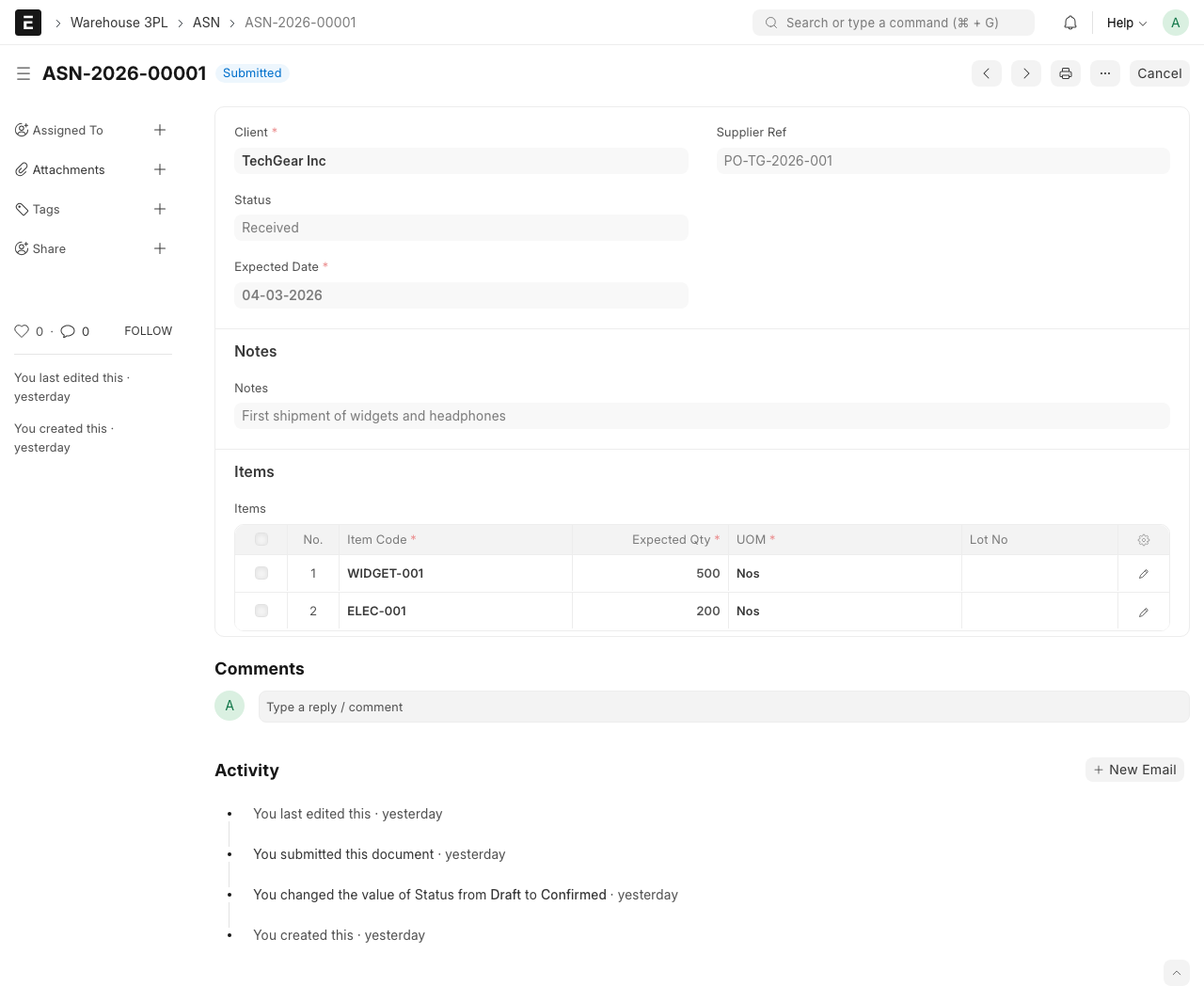
Step 5: Save and Submit
- Click Save (Ctrl+S) to save the draft
- Review all the details
- Click Submit to confirm the ASN
TIP
You can save a draft ASN and come back to finish it later. Only click Submit when you are sure all details are correct.
What Happens After Submit?
When you submit an ASN:
- The status changes from "Draft" to Confirmed
- The warehouse team can see the upcoming shipment
- The system is ready to match this ASN when goods arrive at Receiving
ASN Statuses
| Status | What It Means |
|---|---|
| Draft | ASN is being created, not yet confirmed |
| Confirmed | ASN is submitted, waiting for goods to arrive |
| Received | Goods have arrived and been checked in (see Receiving) |
| Cancelled | ASN was cancelled (shipment not coming) |
Common Situations
Client changes the quantity
If the client says "we are sending 500 units" but later changes it to 400:
- If the ASN is still in Draft, just edit the quantity and save
- If the ASN is already Submitted, you can amend it (click Amend button)
Client adds more items to the same shipment
Click Add Row in the items table to add more items to the ASN.
Shipment does not arrive on the expected date
No action needed in the system. The ASN will stay in "Confirmed" status until you do the receiving. You can update the expected date if needed.
WARNING
Make sure the items in the ASN already exist in the Items list. If the client is sending a new product you have never stored before, create the item record first.
What Happens Next?
When the goods physically arrive at your dock, go to Receiving Goods to check them in against this ASN.