
Receiving Goods
What is Receiving?
Receiving is the process of checking actual goods when they arrive at the dock. You compare what you got to what was expected (from the ASN).
This is one of the most important steps in the warehouse. Accurate receiving means accurate stock levels throughout the system.
When Do You Use Receiving?
When a delivery truck arrives at your dock and you need to:
- Count the goods
- Check for damage
- Record lot numbers and expiry dates
- Get the goods into the system so they can be stored
How to Receive Goods
Step 1: Open the Receiving list
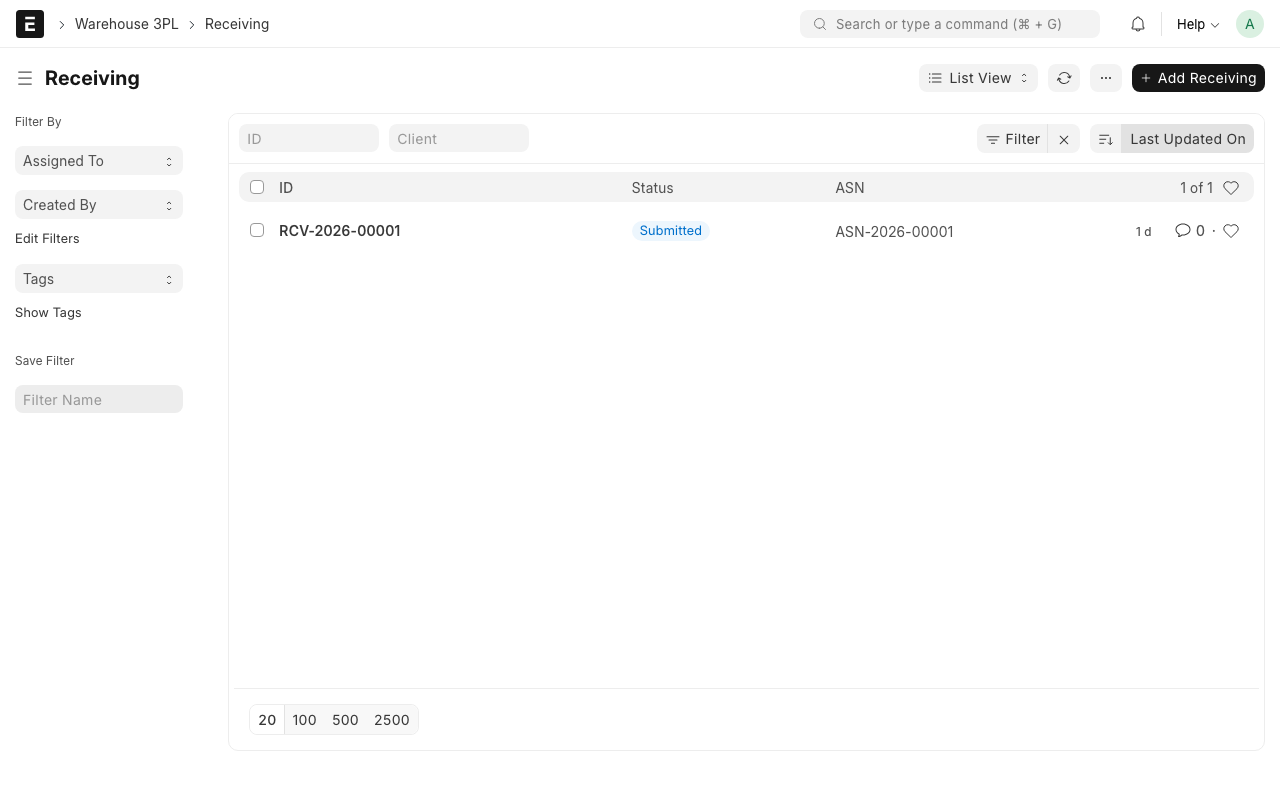
Type Receiving in the search bar and click on Receiving List.
Step 2: Click "Add Receiving"
Click the + Add Receiving button.
Step 3: Link to the ASN (Recommended)
Fastest way to create a Receiving
Open the ASN and click Create → Create Receiving in the Actions menu. This auto-fills the client, items, and quantities — you just verify the actual received qty and submit.
- ASN -- Select the ASN for this shipment. When you select an ASN, the system automatically fills in:
- The Client name
- The Expected Items and quantities
If there is no ASN (unexpected delivery), you can skip this and manually enter the client and items.
Step 4: Set the Staging Location
- Staging Location -- Select where the goods are placed temporarily while being checked. This is usually your receiving dock or staging area. Example: "Receiving Dock"
Step 5: Record each item
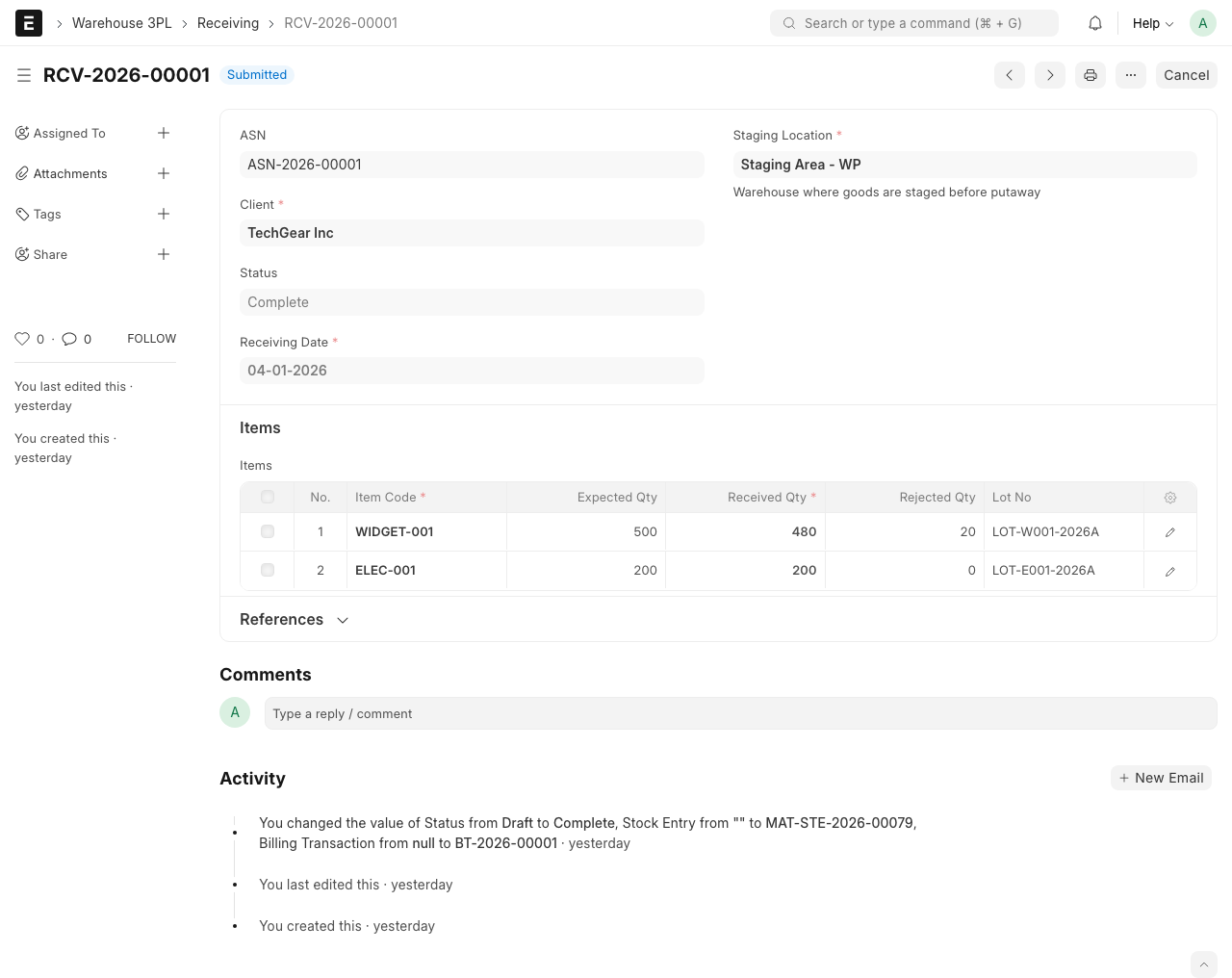
For each item in the shipment, fill in:
- Item Code -- The item being received (auto-filled from ASN)
- Expected Qty -- How many you were expecting (auto-filled from ASN)
- Received Qty -- How many you actually got. Count them carefully.
- Rejected Qty -- How many are damaged or unacceptable. Enter 0 if everything is fine.
- Condition -- The state of the goods:
- Good -- Everything is fine
- Damaged -- Some items are broken, wet, or unusable
- Mixed -- Some good, some damaged
- Lot No -- The batch or lot number printed on the goods
- Expiry Date -- The expiry date printed on the goods (if applicable)
Step 6: Save and Submit
- Click Save (Ctrl+S) to save your work
- Double-check all quantities and lot numbers
- Click Submit to complete receiving
WARNING
Once you click Submit, the goods are added to your inventory. Double-check all quantities before submitting. If you make a mistake, you will need to create a stock adjustment to fix it.
What the System Does Automatically
This is the most important part to understand. When you submit a receiving record, the system does several things behind the scenes:
What happens behind the scenes
1. Creates a Stock Entry The system adds the received quantity to your staging warehouse. This is how items enter your inventory. You can see this in the stock ledger.
2. Creates Putaway Tasks For each item received, the system creates a Putaway Task. These tasks tell warehouse operators which bin to move the goods to. The bin is chosen based on the Inventory Policy.
3. Creates a Billing Transaction The system looks up the client's Rate Card and calculates the receiving charge. For example, 680 units at $0.50/unit = $340.00. This appears in Billing.
4. Updates the ASN Status The linked ASN status changes to "Received". This lets everyone know the shipment has arrived.
Handling Problems
Short Shipment (received less than expected)
If you expected 500 units but only got 450:
- Enter 450 in the Received Qty field
- The system will show the difference
- Submit as normal -- the system records what you actually received
Damaged Goods
If some items are damaged:
- Enter the total good items in Received Qty
- Enter the damaged items in Rejected Qty
- Set Condition to "Damaged" or "Mixed"
- Submit -- only the good items are added to inventory
No ASN Exists
If goods arrive without an ASN (unexpected delivery):
- Create the receiving record without selecting an ASN
- Manually select the Client
- Manually add each item and quantity
- Submit as normal
TIP
Always try to create an ASN before goods arrive. It makes receiving faster because the items are pre-filled, and it gives the warehouse team advance notice to prepare space.
Extra Goods (received more than expected)
If you expected 500 units but got 550:
- Enter 550 in the Received Qty field
- The system will note the overage
- Submit as normal -- the system records the actual quantity
What Happens Next?
After receiving is complete:
- Go to Putaway Tasks to see the tasks created for moving goods to bins
- Warehouse operators will work through the putaway tasks
- The Billing Transaction has already been created for the receiving charge