
Waves (Batch Processing)
What is a Wave?
A Wave is a batch of client orders grouped together for efficient picking. Instead of picking orders one at a time, you group them into a wave and pick them all at once.
Think of it like a bus route. Instead of sending a separate car for each passenger, you put everyone on one bus. A wave puts multiple orders together so one worker (or a team) can pick them in a single trip through the warehouse.
Why Use Waves?
- Faster -- One trip through the warehouse to pick 10 orders is faster than 10 separate trips
- Less walking -- Workers visit each bin area once instead of repeatedly
- Better organized -- All orders in a wave are processed together
How to Create a Wave
Step 1: Open the Wave list
Type Wave in the search bar and click on Wave List.
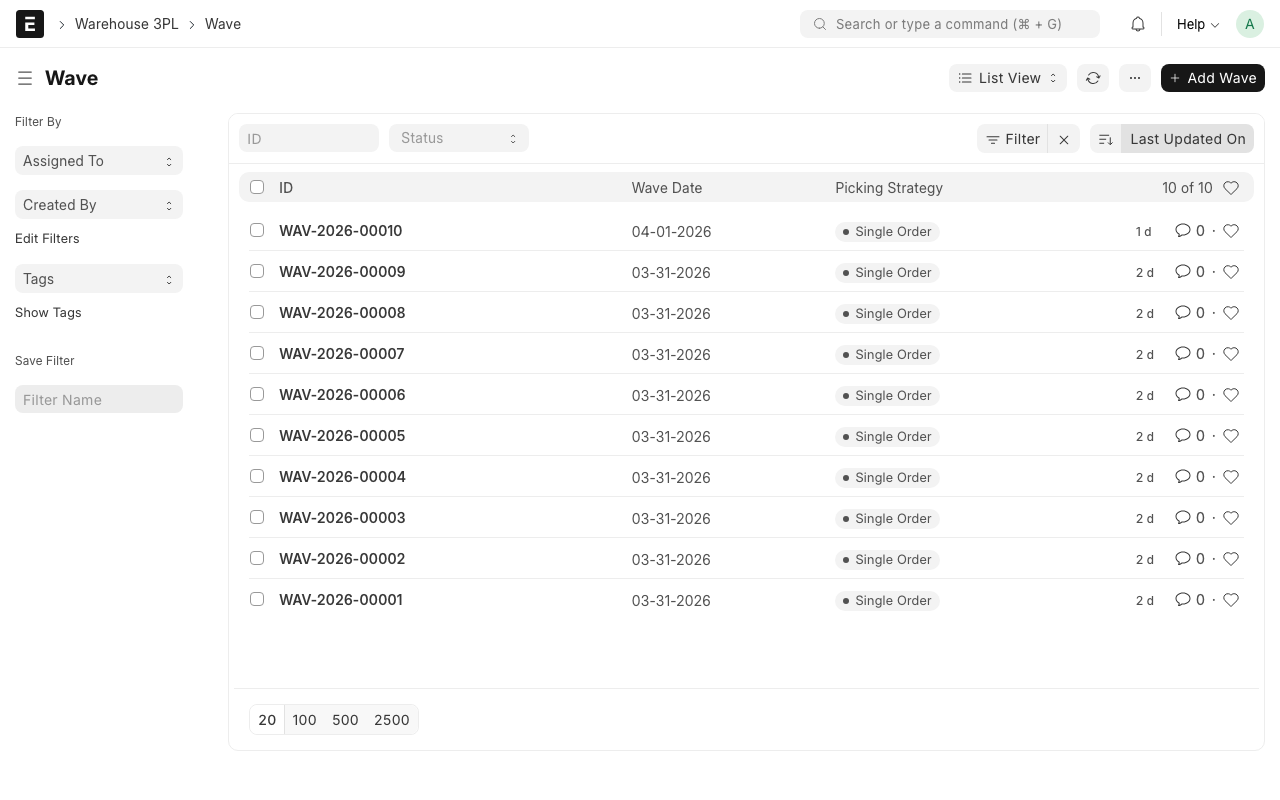
Step 2: Click "Add Wave"
Click the + Add Wave button.
Step 3: Fill in the header
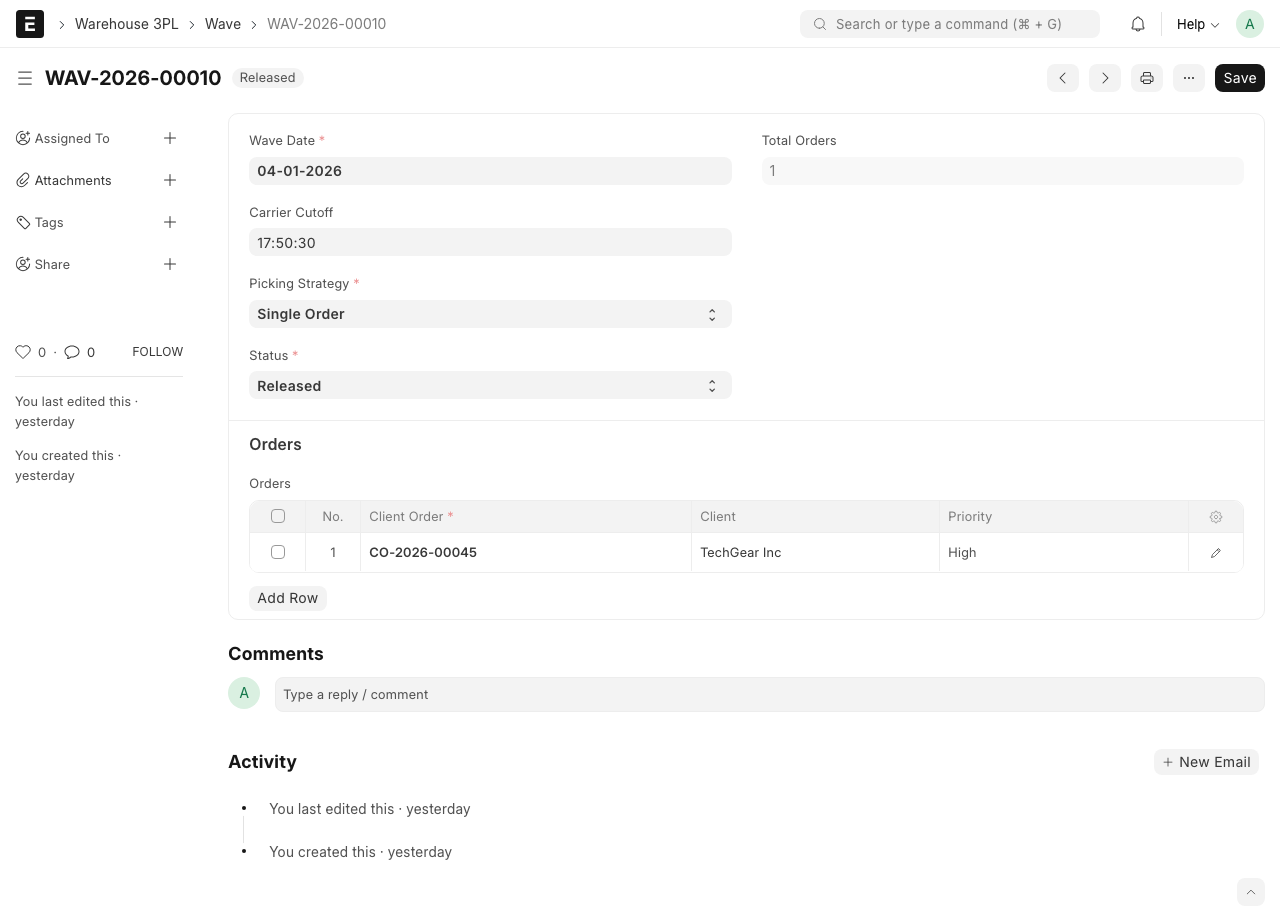
- Wave Date -- Today's date (usually auto-filled)
- Picking Strategy -- How should orders in this wave be picked?
- Single Order -- Each worker picks one order at a time. The worker gets a list of items for one order, picks them all, then moves to the next order. Best for large orders or special handling.
- Batch -- One worker picks items for multiple orders at once. They go to each bin once and pick the total quantity needed across all orders, then sort items by order afterwards. Best for many small orders.
Step 4: Add Client Orders
In the orders table, add the orders you want to include in this wave:
- Click Add Row
- Select a Client Order from the list (only submitted/allocated orders appear)
- Repeat for each order you want to include
You can add orders from different clients in the same wave.
Step 5: Save
Click Save (Ctrl+S).
Step 6: Release the Wave
When you are ready for the warehouse team to start picking:
- Review all orders in the wave
- Click the Release button
WARNING
Once you click Release, pick tasks are created immediately. Make sure all orders in the wave are correct before releasing.
What Happens on Release?
What happens behind the scenes
When you release a wave, the system:
Creates Pick Tasks -- For each item across all orders, the system creates Pick Tasks. Each task tells a worker: go to bin X, pick Y units of item Z.
Determines bin locations -- The system uses the Inventory Policy (FIFO, FEFO, etc.) to decide which bins to pick from. If an item is in multiple bins, the policy determines the order.
Updates order status -- Each client order in the wave changes to "In Wave" status.
Updates wave status -- The wave status changes to "Released".
Wave Statuses
| Status | What It Means |
|---|---|
| Draft | Wave is being built, orders being added |
| Released | Wave is released, pick tasks have been created |
| In Progress | Workers are currently picking |
| Completed | All pick tasks are done |
| Cancelled | Wave was cancelled before release |
Tips for Building Waves
TIP
Group by shipping deadline. Put all orders due today in one wave. This ensures urgent orders get picked first.
TIP
Group by zone. If you have cold storage and ambient storage, consider making separate waves for cold items and ambient items. This reduces time switching between zones.
TIP
Wave size matters. A wave with 5-15 orders is usually a good size. Too few orders and you lose the efficiency benefit. Too many and the sorting step takes too long.
Common Situations
Need to add more orders to a wave
If the wave is still in Draft, just add more rows to the orders table.
If the wave is already Released, you cannot add more orders. Create a new wave for the additional orders.
Need to remove an order from a wave
If the wave is in Draft, delete the row from the orders table.
If the wave is already Released, you may need to cancel individual pick tasks. Contact your supervisor.
Urgent order comes in after wave is released
Create a new wave with just the urgent order. Set it to Single Order picking strategy for fastest processing.
What Happens Next?
After releasing a wave:
- Warehouse workers go to Pick Tasks to start picking
- After picking, Pack Tasks are created automatically
- After packing, the goods are shipped