
Billing & Charges
What is a Billing Transaction?
A Billing Transaction is a record of a chargeable activity. Every time something happens in the warehouse that costs money -- receiving goods, picking an order, packing a shipment -- the system creates a billing transaction.
You do not create billing transactions by hand. They are created automatically as warehouse work happens.
When Are Billing Transactions Created?
| When This Happens... | This Charge is Created |
|---|---|
| Goods are received at the dock | Receiving charge |
| A pick task is completed | Picking charge |
| A pack task is completed | Packing charge |
| An order is shipped | Shipping charge |
| Monthly storage is calculated | Storage charge |
How to View Billing Transactions
Step 1: Open the Billing Transaction list
Type Billing Transaction in the search bar and click on Billing Transaction List.
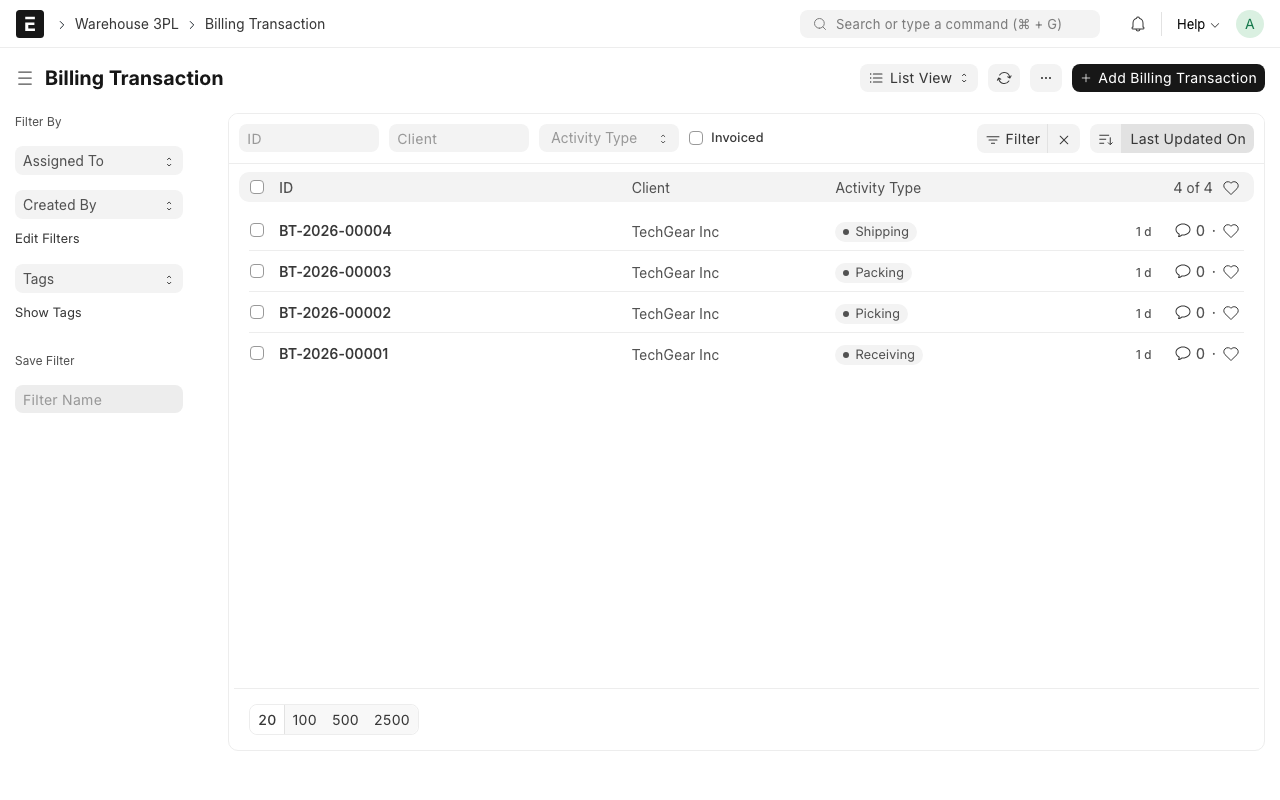
Step 2: Filter the list
Use the filters at the top to narrow down what you see:
- Client -- See charges for one client only
- Activity Type -- See only receiving charges, or only picking charges
- Date Range -- See charges for a specific period (e.g., this month)
- Source Document -- Find the charge linked to a specific receiving or order
Step 3: Review the details
Each billing transaction shows:
- Client -- Who is being charged
- Activity Type -- What the charge is for (Receiving, Picking, Packing, Shipping, Storage)
- Quantity -- How many units/pallets/orders were involved
- Rate -- The price per unit (from the client's Rate Card)
- Amount -- The total charge (Quantity x Rate)
- Source Document -- Which receiving, pick task, or pack task created this charge
- Date -- When the activity happened
How Rates Work
The system calculates charges automatically using the client's active Rate Card:
- An activity happens (e.g., 680 units received for FreshFoods)
- The system finds FreshFoods' active rate card
- It looks up the rate for "Receiving" -- $0.50 per unit
- It calculates: 680 units x $0.50 = $340.00
- A billing transaction is created for $340.00
Example: Full Order Billing
Here is an example of all the charges for processing one client order:
| Activity | Quantity | Rate | Amount |
|---|---|---|---|
| Receiving | 680 units | $0.50 / unit | $340.00 |
| Picking | 150 units | $0.35 / unit | $52.50 |
| Packing | 150 units | $0.25 / unit | $37.50 |
| Shipping | 1 order | $5.00 / order | $5.00 |
| Total | $435.00 |
TIP
To see the total charges for a client over a period, filter the list by client and date range. Add up the amounts to get the total billing.
Storage Charges
Storage charges work differently from other charges:
- Other charges (receiving, picking, packing, shipping) are created instantly when the activity happens
- Storage charges are calculated periodically (usually monthly) based on how much space a client's goods occupy
Storage is typically charged per pallet per month. If a client has 50 pallets stored all month at $15/pallet, the monthly storage charge is $750.
What happens behind the scenes
Storage billing runs as a scheduled process, usually at the end of each month. It counts the pallets (or other units) stored for each client and creates billing transactions based on the storage rate in their rate card.
Common Questions
Why is the amount zero?
If a billing transaction shows $0.00, it usually means:
- The client has no active Rate Card
- The rate card does not have a line for this activity type
- The rate is set to $0.00
Check the client's rate card to fix this.
How do I correct a wrong charge?
Billing transactions are linked to their source documents. If the source document was wrong (e.g., wrong received quantity), correct the source document. If you need to adjust a charge manually, contact your system administrator.
Can I create a billing transaction by hand?
Yes, if you need to add a special charge (like a handling fee or surcharge), you can create a billing transaction manually. But for standard activities, always let the system create them automatically.
WARNING
If a client's rate card is missing or inactive, the system will still create billing transactions, but the amount will be $0. Check the Rate Card page to make sure each active client has an active rate card.
Viewing Billing on a Job Record
If you use Warehouse Job Records, you can see all billing for a specific job in one place:
- Open the Job Record
- Go to the Financials tab
- Click Fetch Linked Vouchers
- The system pulls in all Billing Transactions linked to this job
- You can see Total Revenue, Total Cost, and Gross Profit at the bottom
This is the easiest way to check if a job is profitable.
What Happens Next?
Billing transactions feed into your invoicing process:
- At the end of the billing period, review all transactions for each client
- Generate an invoice based on the total charges
- Share with the client for payment