
Putaway Tasks
What is Putaway?
Putaway is the process of moving goods from the staging area (where they were unloaded) to their storage bins (where they will be kept until needed).
After you receive goods, the system creates putaway tasks automatically. Each task tells you: which item to move, how much, where it is now, and where it should go.
When Do Putaway Tasks Appear?
Putaway tasks are created automatically when you submit a Receiving record. You do not create them manually.
The system uses the Inventory Policy to decide which bin each item goes to. It considers:
- The item's temperature zone (cold items go to cold storage)
- The putaway strategy (nearest bin, consolidate with existing stock, etc.)
- Bin capacity (it will not overfill a bin)
How to Work on a Putaway Task
Step 1: Open the Putaway Task list
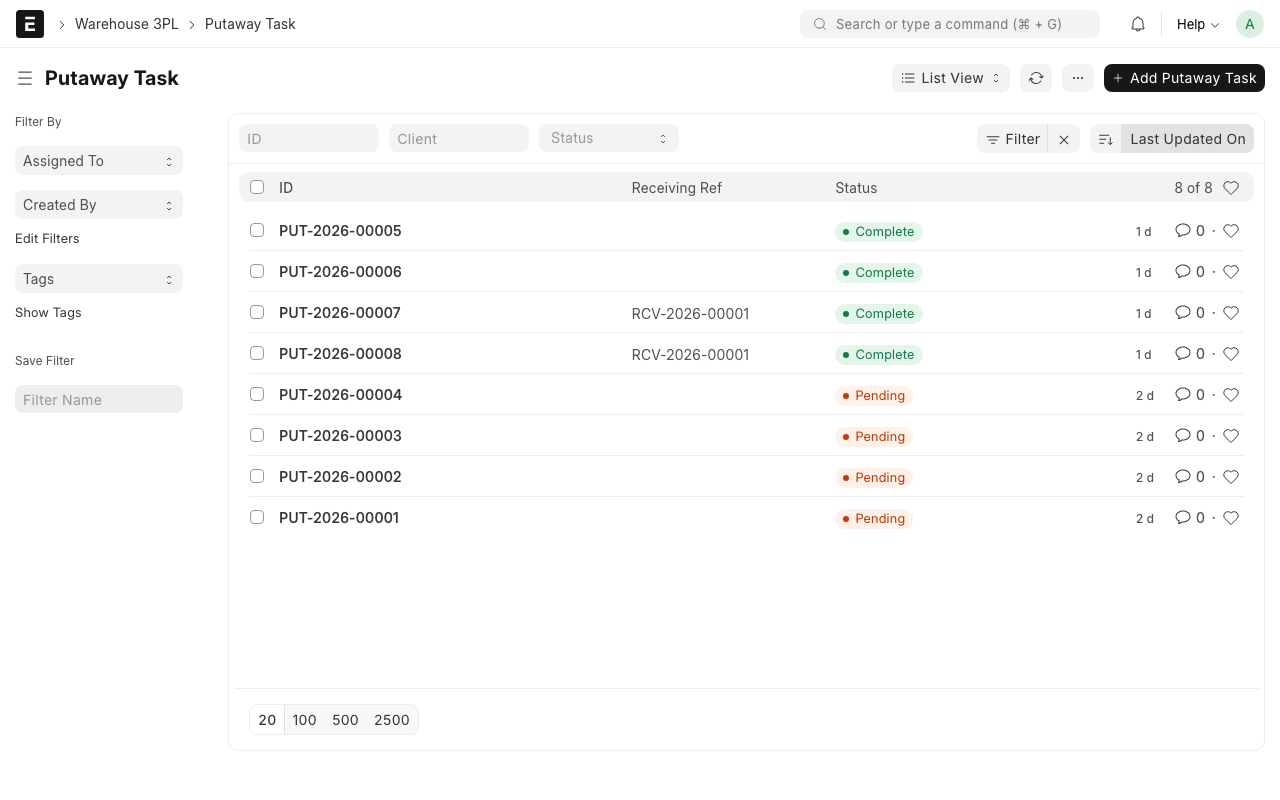
Type Putaway Task in the search bar and click on Putaway Task List.
Step 2: Filter for pending tasks
Click the Status filter and select Pending. This shows all tasks waiting to be done.
You can also filter by:
- Warehouse -- to see only tasks for your zone
- Client -- to see only tasks for a specific client
Step 3: Open a task
Click on a task to open it. You will see:
- Item -- What product to move. Example: "Organic Almond Milk 1L"
- Quantity -- How many to move. Example: "200 units"
- Source Location -- Where the goods are now. Example: "Receiving Dock"
- Target Location -- Where the goods should go. Example: "AMB-A-01-02-A-003"
- Lot No -- The batch number (if applicable)
Step 4: Physically move the goods
- Go to the Source Location (usually the receiving dock or staging area)
- Find the item and quantity listed on the task
- Move them to the Target Location (the storage bin)
- Confirm you are at the right bin (scan the bin barcode if available)
Step 5: Mark the task as Complete
Once the goods are in the correct bin:
- Open the task in the system
- Click the Complete button
- The status changes to "Completed"
TIP
If you have a barcode scanner, scan the target bin barcode to confirm you are at the right location. This prevents putting goods in the wrong bin.
What Happens When You Complete a Task?
What happens behind the scenes
When you mark a putaway task as complete, the system creates a Stock Entry that moves the inventory from the staging warehouse to the storage bin. This updates the stock levels so reports show the correct location for each item.
Common Situations
Target bin is full
If you get to the bin and it is already full:
- Do not complete the task yet
- Contact your supervisor or warehouse manager
- They can reassign the task to a different bin
Cannot find the item at the source
If the item is not at the receiving dock:
- Check if another worker already moved it
- Check if the receiving record has the correct quantity
- Contact your supervisor if the item is missing
Wrong item at the source
If the item at the source does not match the task:
- Do not move it
- Report the mismatch to your supervisor
- There may have been a receiving error
WARNING
Always verify the item and quantity before completing a putaway task. Moving the wrong item to a bin causes stock discrepancies that are hard to fix later.
Putaway Task Statuses
| Status | What It Means |
|---|---|
| Pending | Task created, waiting for someone to do it |
| In Progress | Someone has started working on this task |
| Completed | Goods have been moved to the target bin |
| Cancelled | Task was cancelled (e.g., receiving was reversed) |
What Happens Next?
After putaway is complete:
- The goods are now in their storage bins and available for picking
- Stock reports will show the correct bin locations (see Reports)
- When a Client Order comes in, the system knows where to find the items