
Items & Client Items
This page covers two related things:
- Items -- the products stored in your warehouse
- Client Items -- how a client's own product codes map to your items
Part 1: Items
What is an Item?
An Item is a product that you store in the warehouse. Every physical product needs an item record in the system before you can receive it, store it, or ship it.
Examples: "Organic Almond Milk 1L", "Wireless Mouse Model X", "Winter Jacket Size M".
How to Create an Item
Step 1: Open the Item list
Type Item in the search bar and click on Item List.
Step 2: Click "Add Item"
Click the + Add Item button in the top-right corner.
Step 3: Fill in the required fields
- Item Code -- A unique code for this item. Example: "ALM-MILK-1L". Keep it short and meaningful.
- Item Name -- The full name of the item. Example: "Organic Almond Milk 1L".
- Stock UOM (Unit of Measure) -- How you count this item. Common options:
- Nos -- Individual pieces (most common)
- Kg -- By weight
- Box -- By box
- Pallet -- By pallet
- Is Stock Item -- Make sure this is checked. This tells the system to track inventory for this item.
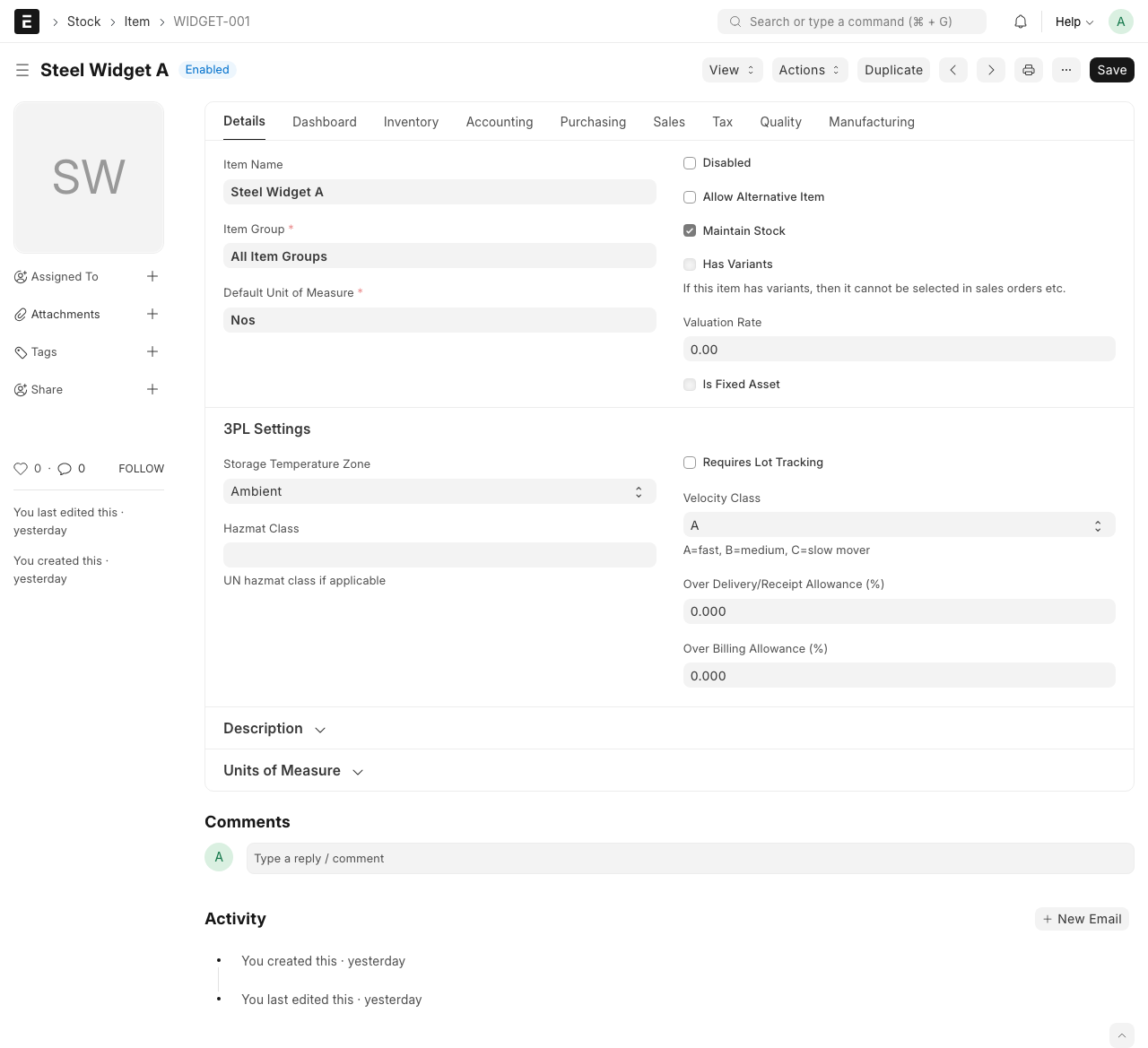
Step 4: Fill in 3PL-specific fields
Scroll down to the 3PL section. These fields help the system make smart decisions about storage and picking:
- Storage Temperature Zone -- What temperature does this item need?
- Ambient -- Room temperature
- Cold -- Refrigerated
- Frozen -- Freezer
- Velocity Class -- How fast does this item move? This helps decide where to store it:
- A -- Fast mover (ships frequently). Store near the packing area for quick access.
- B -- Medium mover. Standard location is fine.
- C -- Slow mover (rarely ships). Can be stored in harder-to-reach spots.
- Requires Lot Tracking -- Check this if you need to track batches. Important for food, medicine, or anything with expiry dates. When checked, every receive and shipment must include a lot/batch number.
Step 5: Save
Click Save (Ctrl+S).
TIP
If the item has an expiry date (like food or medicine), always check Requires Lot Tracking. This lets the system use FEFO (First Expiry, First Out) to ship the oldest stock first.
WARNING
You cannot receive goods for an item that does not exist in the system. Always create the item record first, then create the ASN.
Part 2: Client Items
What is a Client Item?
A Client Item links a client's own product code (their SKU) to your item in the system. Clients often use different codes than you do.
For example:
- Your item code: "ALM-MILK-1L"
- Client's SKU: "PROD-8842"
The Client Item record says: "When FreshFoods says PROD-8842, they mean our ALM-MILK-1L."
Why use Client Items?
- Clients send orders using their own product codes
- The system automatically translates their codes to yours
- Keeps things clear when multiple clients store the same type of product
How to Create a Client Item
Step 1: Open the Client Item list
Type Client Item in the search bar and click on Client Item List.
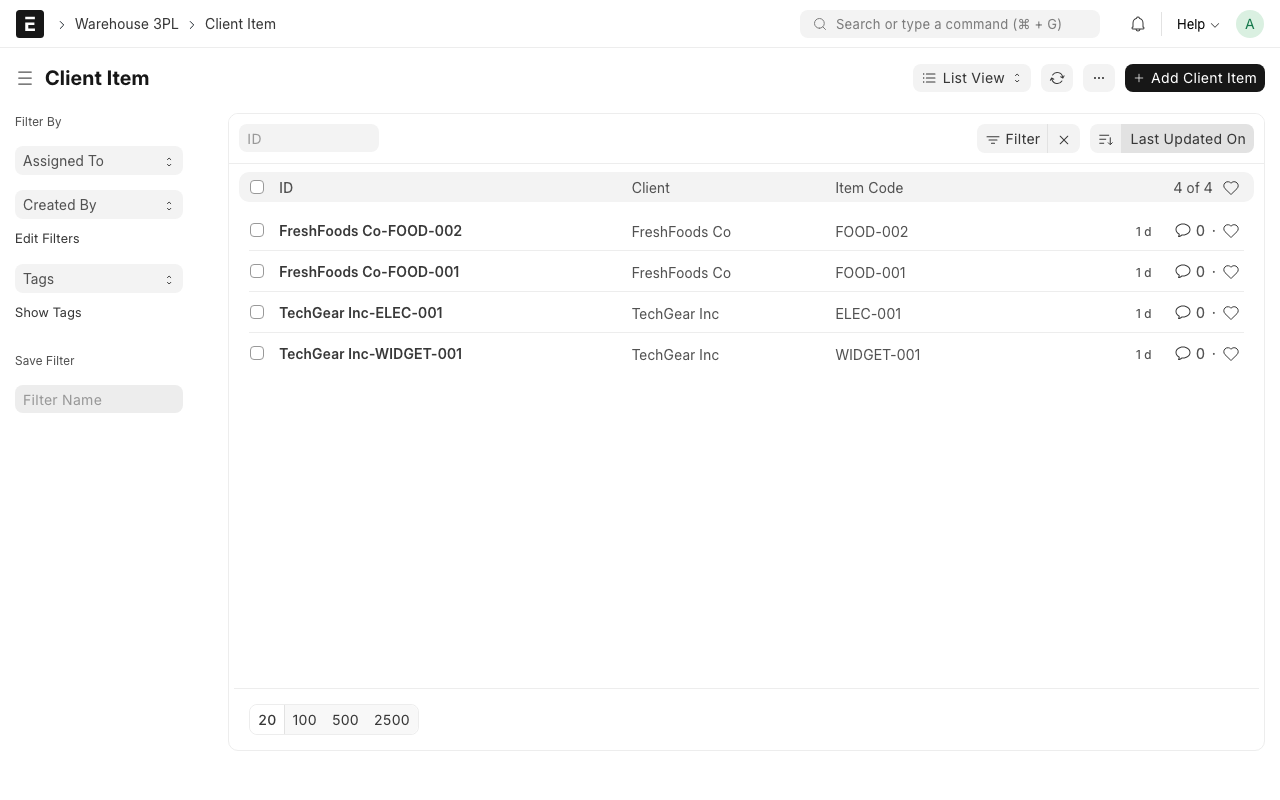
Step 2: Click "Add Client Item"
Click the + Add Client Item button.
Step 3: Fill in the fields
- Client -- Select the client this mapping belongs to. Example: "FreshFoods Inc."
- Item -- Select the item from your system. Example: "ALM-MILK-1L"
- Client SKU -- The client's own product code. Example: "PROD-8842"
- Client Description -- How the client describes this item. Example: "Almond Milk Organic 1 Litre"
- Handling Notes -- Any special instructions for this item. Example: "Keep upright. Do not stack more than 4 high."
Step 4: Save
Click Save (Ctrl+S).
What happens behind the scenes
When you create an ASN or Client Order and select a client, the system can look up their SKU codes and automatically match them to your items. This saves time and avoids mistakes.
What Happens Next?
After creating items and client items:
- You can now create an ASN to receive these goods
- The items will appear in Client Orders when the client places orders
- The system will use the Inventory Policy to decide how to store and pick them