
Inventory Policies
What is an Inventory Policy?
An Inventory Policy is a set of rules that controls how goods are stored and picked in the warehouse. Different clients need different rules.
For example:
- A food company needs FEFO (First Expiry, First Out) -- always ship the item closest to its expiry date first
- An electronics company needs FIFO (First In, First Out) -- always ship the oldest stock first
- A fashion brand might need no specific rule -- just pick from the nearest bin
Why Do Policies Matter?
Without policies, warehouse workers would have to guess which stock to pick first. Policies make it automatic. The system tells workers exactly which bin to pick from, based on the rules you set.
This prevents:
- Expired goods being shipped
- Old stock sitting forgotten in the back
- Wrong temperature storage
- Missed quality checks
How to Create an Inventory Policy
Step 1: Open the Inventory Policy list
Type Inventory Policy in the search bar and click on Inventory Policy List.
Step 2: Click "Add Inventory Policy"
Click the + Add Inventory Policy button.
Step 3: Fill in the fields
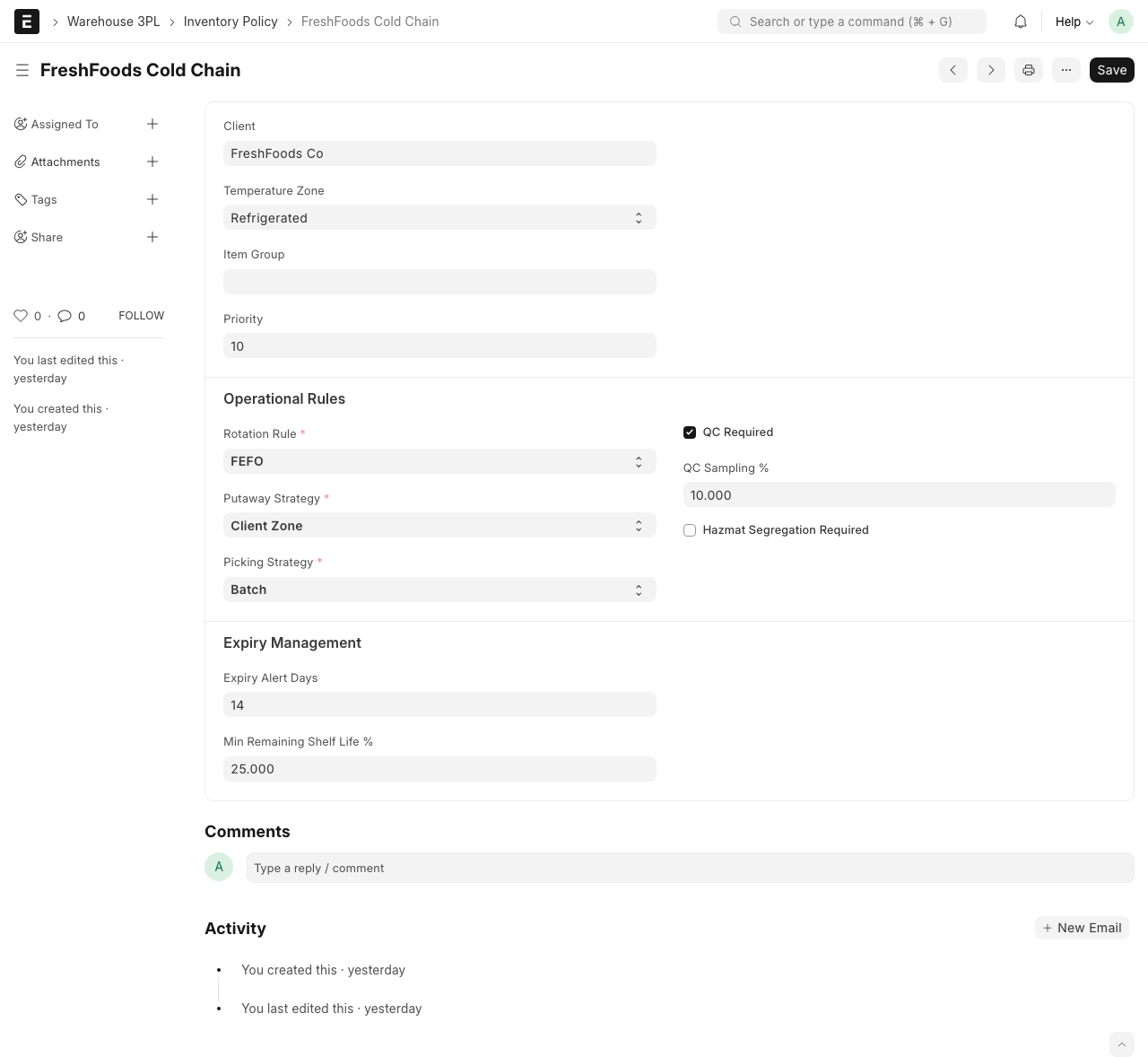
Here is what each field means in plain language:
Basic Information
- Policy Name -- A descriptive name. Example: "FreshFoods FEFO Policy" or "Default FIFO Policy"
- Client -- (Optional) Which client this policy is for. Leave blank to make it a default policy for everyone.
- Item Group -- (Optional) Which type of items this applies to. Example: "Frozen Foods"
Rotation Rule
This is the most important setting. It controls which stock gets picked first.
- FIFO (First In, First Out) -- The oldest stock ships first. Good for most products. If you received 100 units on Monday and 50 units on Wednesday, Monday's units ship first.
- FEFO (First Expiry, First Out) -- The stock closest to expiry ships first. Essential for food, medicine, and anything perishable. If one batch expires June 1 and another expires July 15, the June 1 batch ships first.
- LIFO (Last In, First Out) -- The newest stock ships first. Rarely used, but sometimes needed for specific products.
Putaway Strategy
Where should new goods be stored when they arrive?
- Nearest Available -- Put goods in the closest empty bin. Fast and simple.
- Consolidate -- Put goods next to the same item already in stock. Keeps things tidy.
- Zone Based -- Put goods in a specific zone based on temperature or item type.
Picking Strategy
How should orders be picked?
- Single Order -- Pick one order at a time. Simple but slower.
- Batch -- Pick multiple orders at once, then sort them. Faster for high-volume operations.
- Zone -- Each worker picks from their assigned zone only.
Quality Control
- QC Required -- Should goods be inspected when they arrive? Check this for items that need quality checks before they are put away.
- QC Percentage -- If QC is required, what percentage of items should be checked? Example: 100% means check everything. 10% means check 1 out of every 10.
Expiry Management
- Expiry Alert Days -- How many days before expiry should the system warn you? Example: 30 means you get an alert when an item is 30 days from expiring.
- Minimum Shelf Life Days -- Minimum remaining shelf life for shipping. Example: 60 means do not ship items with less than 60 days of shelf life left.
Step 4: Save
Click Save (Ctrl+S).
TIP
Start with a simple default policy using FIFO for all clients. Then create specific policies for clients who need FEFO or other special rules.
How the System Chooses a Policy
When the system needs to decide how to store or pick an item, it looks for the most specific policy that matches:
- Client + Item -- A policy set for a specific client and specific item (most specific)
- Client + Item Group -- A policy for a client and a category of items
- Client -- A policy for a client (any item)
- Item Group -- A policy for a category (any client)
- Default -- The catch-all policy (least specific)
The most specific match wins. If no match is found, the system uses the default settings.
What happens behind the scenes
Every time the system creates a putaway task or a pick task, it checks the inventory policy. The policy determines which bin goods go to (putaway) and which bin goods are picked from (picking). You do not need to think about this -- it happens automatically.
What Happens Next?
After creating policies:
- The Putaway system will use the putaway strategy to choose bins
- The Picking system will use the rotation rule to choose which stock to pick
- Reports will show items nearing expiry if you set alert days
WARNING
If you change a policy, it only affects future tasks. Goods already stored in bins will not be moved automatically. If you need to reorganize existing stock, that must be done manually or with a stock transfer.