
Warehouses & Locations
This page covers two levels of your physical space:
- Warehouses -- large areas or zones (like "Cold Storage" or "Ambient Zone")
- Warehouse Locations -- specific bins or shelf positions within a zone
Part 1: Warehouses (Zones)
What is a Warehouse?
A Warehouse in this system represents a physical area in your building. Think of it as a zone or section.
Examples:
- "Ambient Zone" -- the main room-temperature area
- "Cold Storage" -- the refrigerated section
- "Receiving Dock" -- where goods arrive
- "Shipping Dock" -- where goods leave
How Warehouses are Organized
Warehouses follow a hierarchy:
Main Warehouse (your building)
  +-- Ambient Zone
  +-- Cold Storage Zone
  +-- Frozen Zone
  +-- Receiving Dock
  +-- Shipping Dock
The top-level warehouse is your building. Under it, you create zones for each area.
How to Create a Warehouse
Step 1: Open the Warehouse list
Type Warehouse in the search bar and click on Warehouse List.
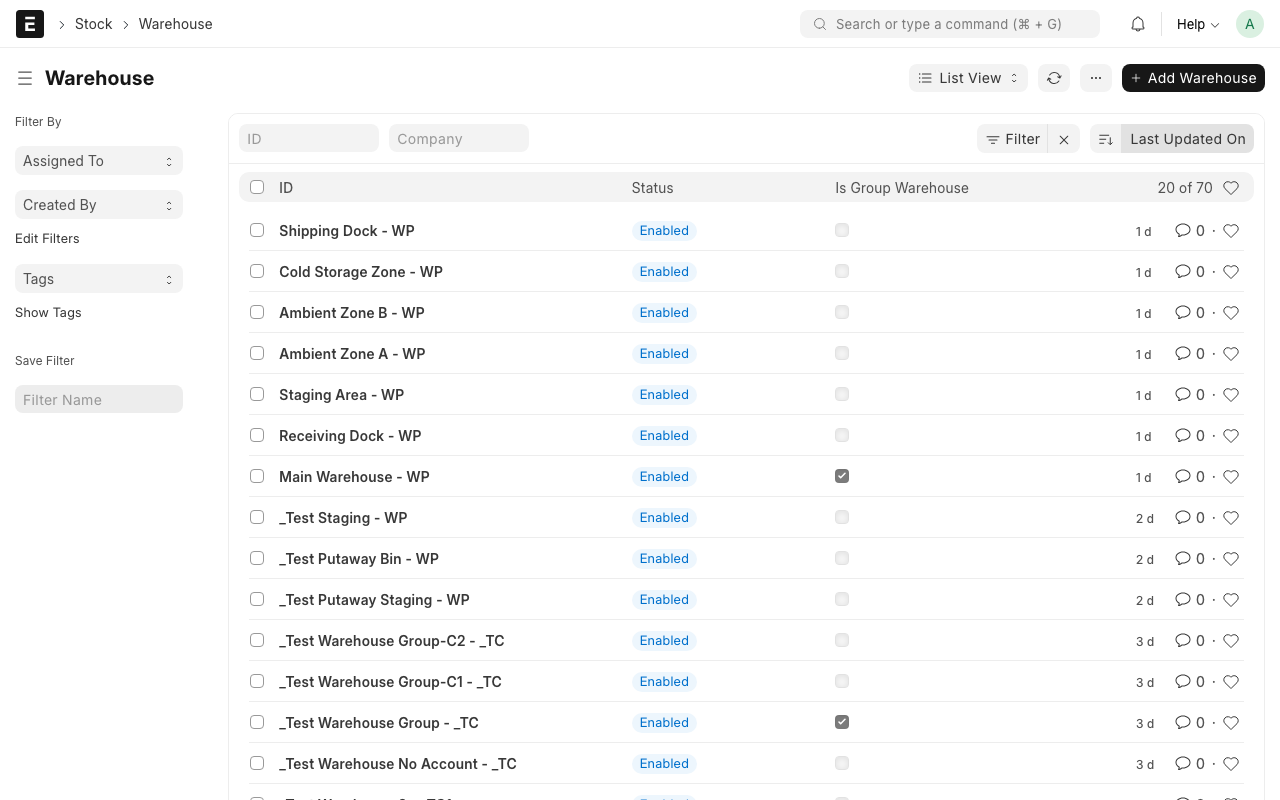
Step 2: Click "Add Warehouse"
Click the + Add Warehouse button.
Step 3: Fill in the fields
- Warehouse Name -- A clear name for this zone. Example: "Cold Storage Zone"
- Parent Warehouse -- Select the main warehouse this zone belongs to. If this is the top-level warehouse, leave it blank.
- Company -- Select your company.
- Temperature Zone -- What temperature is this area?
- Ambient -- Room temperature
- Cold -- Refrigerated
- Frozen -- Freezer
- Location Type -- What kind of area is this?
- Storage -- Where goods are stored long-term
- Staging -- Temporary holding area (e.g., receiving dock)
- Dock -- Loading/unloading area
Step 4: Save
Click Save (Ctrl+S).
TIP
Create your warehouse hierarchy from top to bottom. First create the main warehouse, then create the zones under it.
WARNING
The Temperature Zone on a warehouse must match the items stored there. The system will warn you if you try to put a frozen item in an ambient zone.
Part 2: Warehouse Locations (Bins)
What is a Warehouse Location?
A Warehouse Location is a specific spot inside a zone where goods are stored. Think of it as a bin, shelf position, or pallet spot.
Each location has a unique address so workers can find items quickly.
Location Naming Format
Locations follow a standard naming format:
Zone - Aisle - Rack - Level - Bin
AMB  -  A   -  01  -  01  - A-001
This means: Ambient zone, Aisle A, Rack 01, Level 01, Bin A-001.
The naming system makes it easy to find any location in the warehouse. Start from the zone and work your way down to the exact bin.
How to Create a Warehouse Location
Step 1: Open the Warehouse Location list
Type Warehouse Location in the search bar and click on Warehouse Location List.
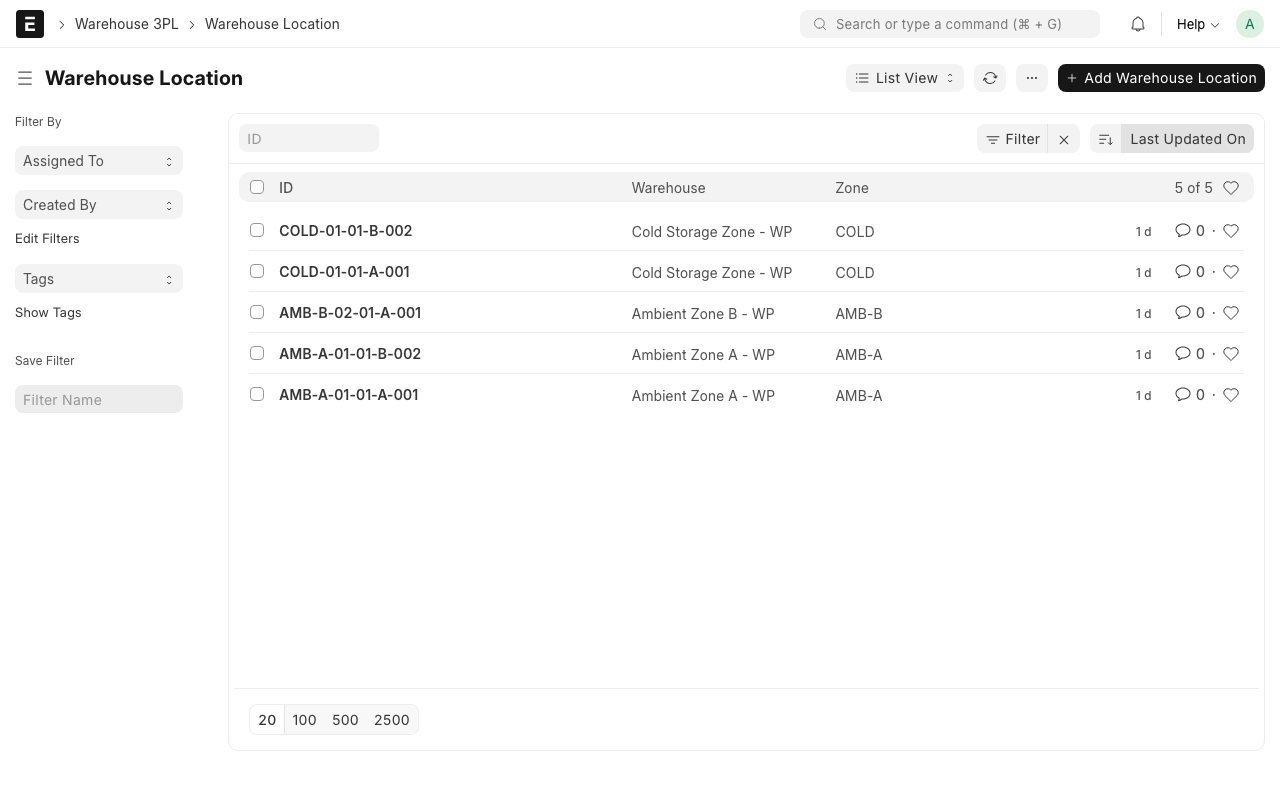
Step 2: Click "Add Warehouse Location"
Click the + Add Warehouse Location button.
Step 3: Fill in the fields
- Zone -- Select the warehouse zone this bin is in. Example: "Ambient Zone"
- Aisle -- The aisle letter or number. Example: "A"
- Rack -- The rack number within the aisle. Example: "01"
- Level -- The shelf level (1 = floor, 2 = second shelf, etc.). Example: "01"
- Bin Code -- The specific bin identifier. Example: "A-001"
- Barcode -- This is generated automatically. It creates a scannable barcode for the location.
- Status -- The current state of this bin:
- Active -- Available for use
- Blocked -- Temporarily cannot be used (e.g., maintenance)
- Reserved -- Held for a specific client or purpose
- Capacity -- How much this bin can hold. Set the number and unit (e.g., "10 pallets" or "50 boxes").
Step 4: Save
Click Save (Ctrl+S).
What happens behind the scenes
When the system creates putaway tasks after receiving, it uses the location information to decide which bin to send goods to. It considers the zone's temperature, the bin's capacity, and the bin's status.
Bulk Creating Locations
If you need to create many locations at once (e.g., an entire aisle), ask your system administrator. There is an import tool that can create hundreds of locations from a spreadsheet.
TIP
Label each physical bin with the location barcode. Workers can scan the barcode to confirm they are at the right spot during putaway and picking.
What Happens Next?
After setting up warehouses and locations:
- The system can now assign putaway tasks to specific bins
- Pick tasks will tell operators which bin to go to
- Reports will show stock levels per location