
Picking & Packing
This page covers two related tasks:
- Pick Tasks -- collecting items from warehouse bins
- Pack Tasks -- verifying and packing items into cartons for shipping
Part 1: Pick Tasks
What is a Pick Task?
A Pick Task is an assignment to pick specific items from specific bins in the warehouse. It tells you exactly where to go, what to grab, and how much.
Pick tasks are created automatically when a Wave is released. You do not create them by hand.
How to Work on a Pick Task
Step 1: Open the Pick Task list
Type Pick Task in the search bar and click on Pick Task List.
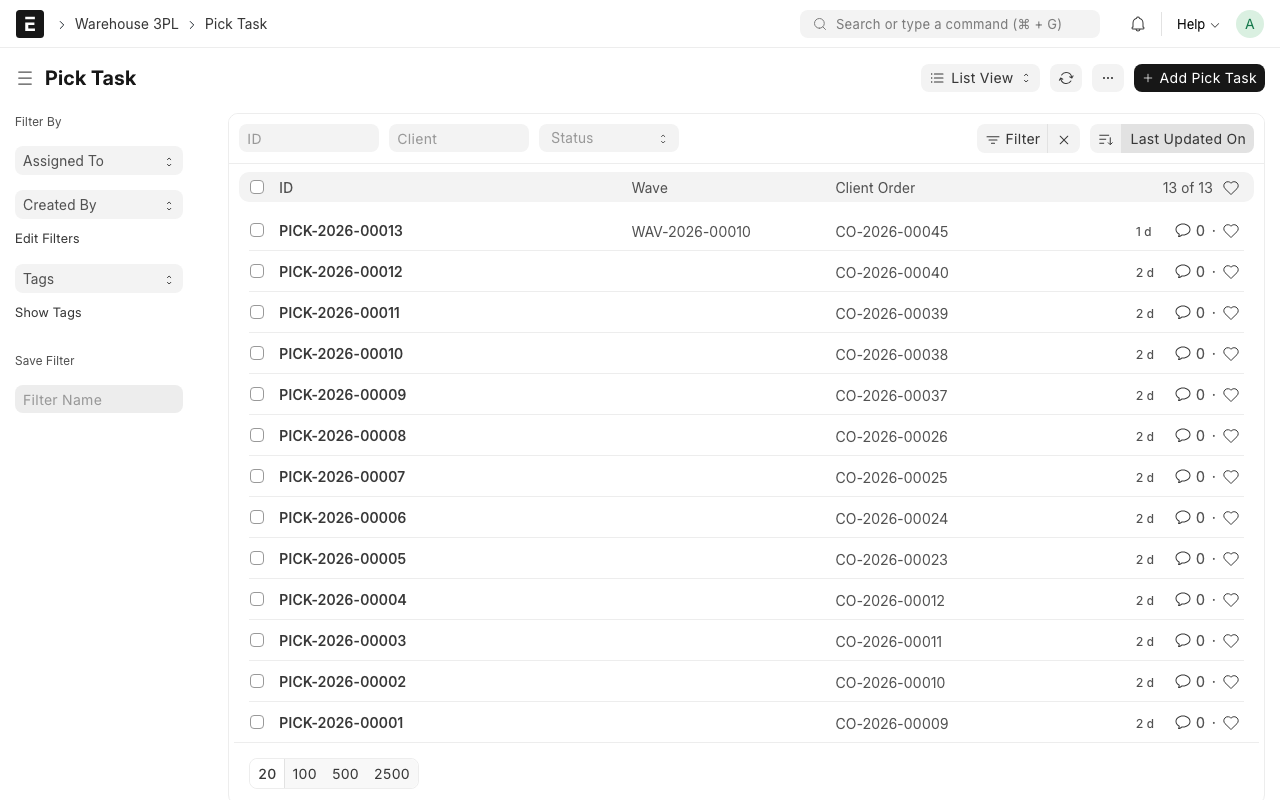
Step 2: Filter for pending tasks
Click the Status filter and select Pending. This shows all tasks waiting to be done.
You can also filter by:
- Wave -- to see tasks for a specific wave
- Warehouse -- to see only tasks in your zone
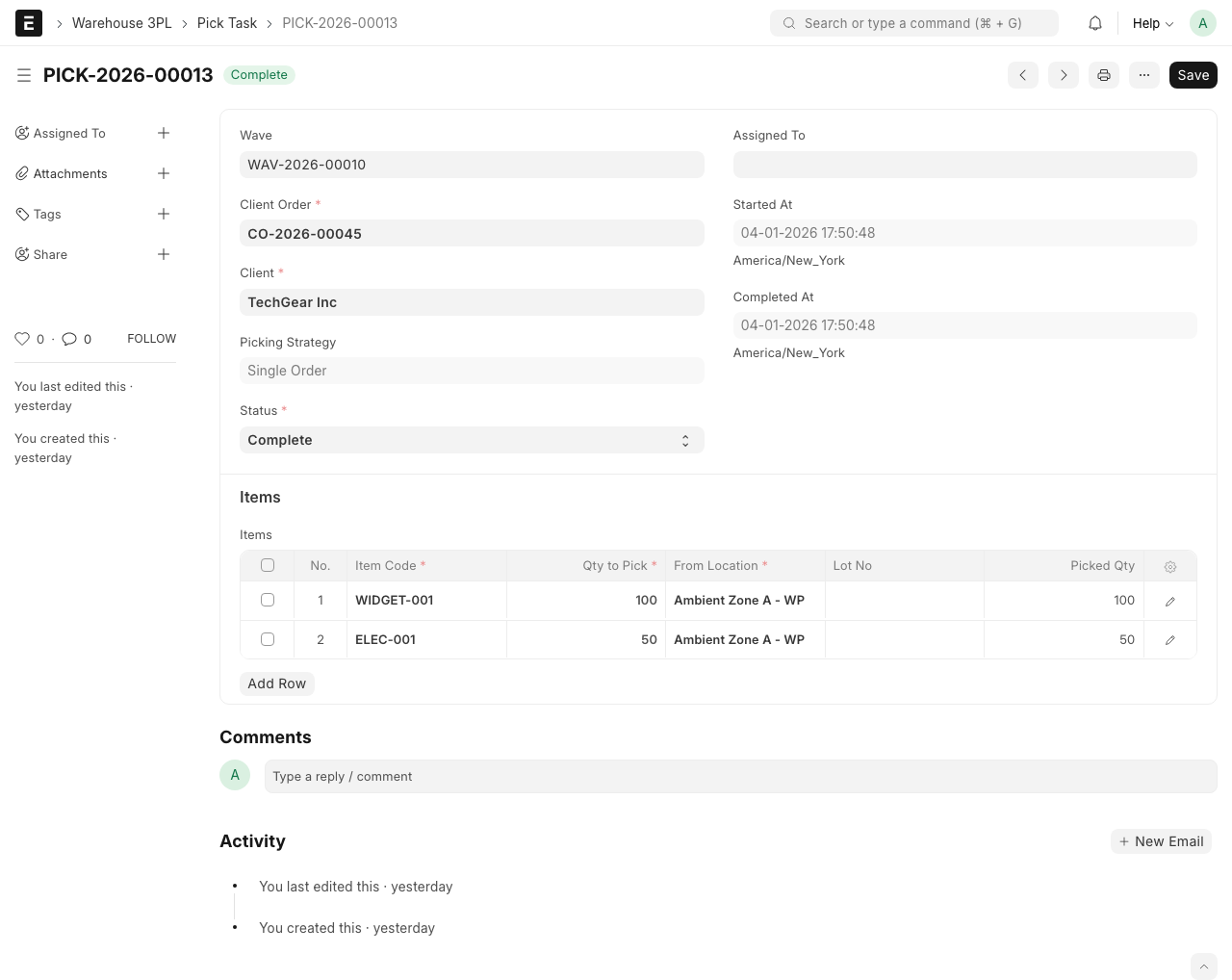
Step 3: Open a task
Click on a task to see the details:
- Wave -- Which wave this task belongs to
- Client Order -- Which customer order this is for
- Items to Pick -- A table showing:
- Item -- What to pick. Example: "Organic Almond Milk 1L"
- Quantity -- How many to pick. Example: "50 units"
- Source Bin -- Where to get it. Example: "AMB-A-01-02-A-003"
- Lot No -- Which batch to pick (if lot-tracked)
Step 4: Pick the items
- Go to the first Source Bin listed on the task
- Confirm you are at the right bin (scan barcode if available)
- Pick the listed Quantity of the listed Item
- If there are multiple items, repeat for each line
- Place all picked items on your cart or in a tote
Step 5: Mark as Complete
Once you have picked everything:
- Return to the task in the system
- Click the Complete button
- The status changes to "Completed"
TIP
Work through the pick list in bin order (the bins are usually sorted by location). This minimizes walking back and forth across the warehouse.
What Happens When a Pick Task is Completed?
What happens behind the scenes
When you complete a pick task:
Common Pick Task Problems
Bin is empty but task says items should be there
- Check surrounding bins -- the item may have been placed one bin over
- Check if another worker already picked from this bin
- Report the discrepancy to your supervisor
- Do not complete the task with the wrong quantity
Not enough items in the bin
If the bin has fewer items than the task requires:
- Pick what is available
- Note the actual quantity picked
- Report the short pick to your supervisor
- The system may need to source the remaining items from another bin
WARNING
Never pick items from a different bin than what the task says unless instructed by your supervisor. Picking from the wrong bin causes stock discrepancies.
Part 2: Pack Tasks
What is a Pack Task?
A Pack Task is an assignment to verify picked items and pack them into boxes or cartons for shipping. It is the final check before goods leave the warehouse.
Pack tasks are created automatically when a Pick Task is completed. You do not create them by hand.
How to Work on a Pack Task
Step 1: Open the Pack Task list
Type Pack Task in the search bar and click on Pack Task List.
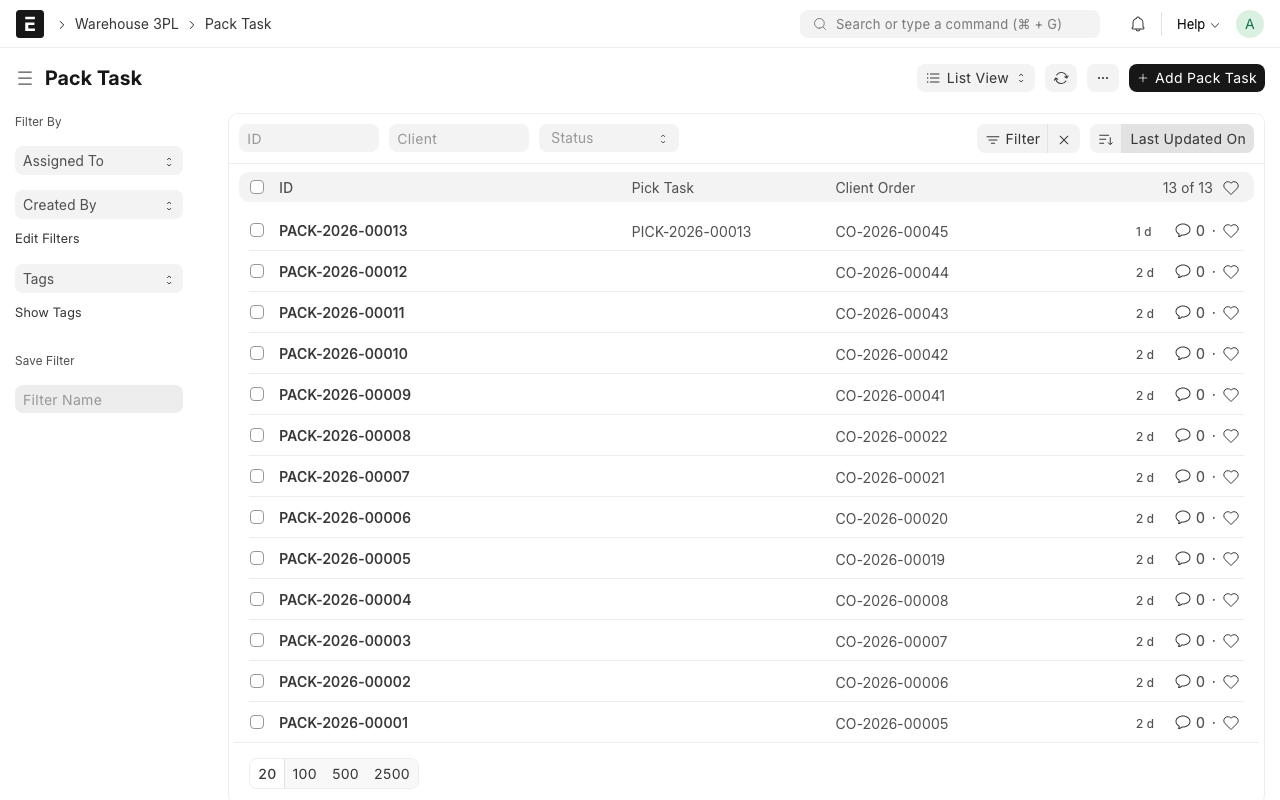
Step 2: Filter for pending tasks
Click the Status filter and select Pending.
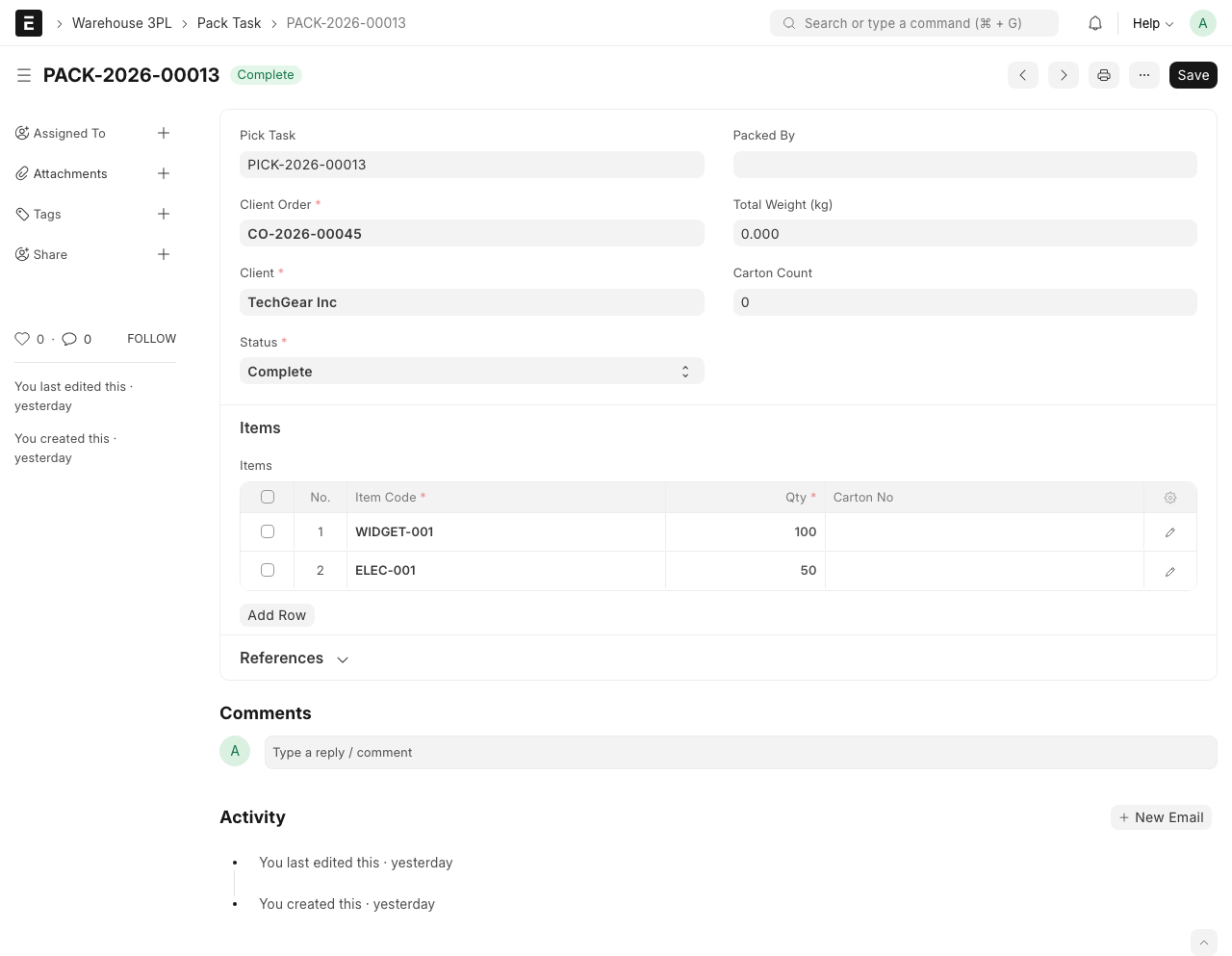
Step 3: Open a task
Click on a task to see:
- Client Order -- Which customer order this is for
- Shipping Address -- Where the package is going
- Items to Pack -- A table showing:
- Item -- What to pack. Example: "Organic Almond Milk 1L"
- Quantity -- How many. Example: "50 units"
- Lot No -- Which batch (if applicable)
Step 4: Verify and pack
- Check that the physical items on the packing table match the list
- Verify the quantity of each item
- Verify the lot numbers if applicable
- Pack items into appropriate cartons or boxes
- Apply shipping labels if required
- Note the number of cartons used
Step 5: Mark as Complete
Once everything is packed:
- Return to the task in the system
- Click the Complete button
- The status changes to "Completed"
What Happens When a Pack Task is Completed?
What happens behind the scenes
When you complete a pack task:
- A Delivery Note is created -- This is the official record that goods have left the warehouse. It records what was shipped, to whom, and when.
- A Billing Transaction is created -- The system charges the packing fee and shipping fee based on the client's Rate Card.
- The Client Order status updates -- The order moves to "Shipped" status.
- Stock is deducted -- The shipped items are removed from your inventory.
Common Pack Task Problems
Items do not match the task
If the physical items do not match what the task says:
- Stop packing
- Check if the correct items were picked
- Report the mismatch to your supervisor
- Do not complete the task until the issue is resolved
Damaged item found during packing
If you find a damaged item while packing:
- Set the damaged item aside
- Note the damage
- Report to your supervisor -- they may need to pick a replacement from the warehouse
- Do not ship damaged goods
WARNING
Always verify items before packing. The pack task is your last chance to catch mistakes before goods leave the warehouse. Once shipped, fixing errors is expensive.
Pick and Pack Task Statuses
| Status | What It Means |
|---|---|
| Pending | Task created, waiting to be started |
| In Progress | Worker is currently working on it |
| Completed | Task is done |
| Cancelled | Task was cancelled |
What Happens Next?
After packing is complete:
- The goods are ready for carrier pickup or delivery
- The Delivery Note is available in the system
- Billing charges for picking, packing, and shipping have been recorded
- The Client Order shows as "Shipped"