
Reports & Stock Checks
This page covers the reports you can use to check stock levels, track movements, and monitor warehouse activity.
Stock Balance Report
What is it?
The Stock Balance report shows the current quantity of each item in each warehouse. It answers the question: "How much of each product do we have right now?"
How to Use It
- Type Stock Balance in the search bar and click on the report
- Set the filters:
- Company -- Select your company
- Warehouse -- (Optional) Select a specific zone, or leave blank to see all zones
- Item -- (Optional) Search for a specific product
- From Date / To Date -- Set the date range
- Click Refresh to load the data
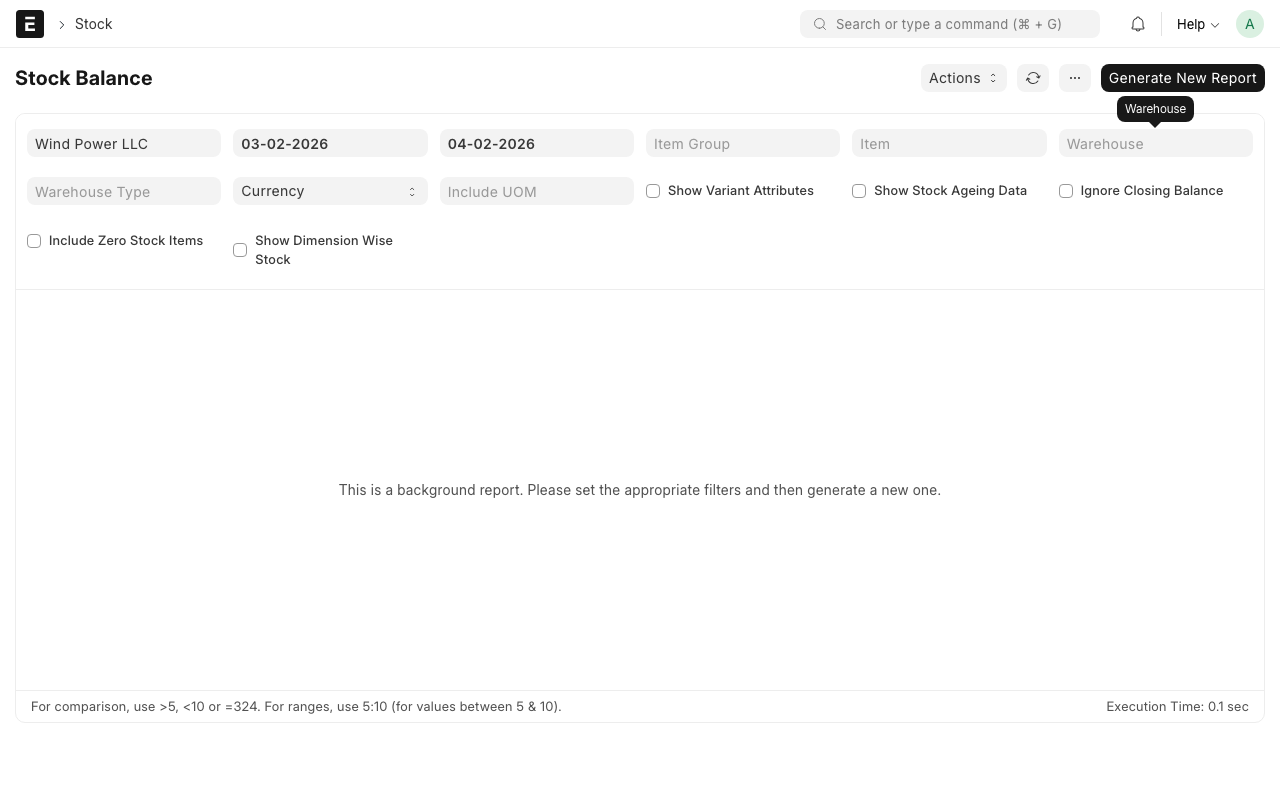
The report shows:
| Column | What It Means |
|---|---|
| Item | The product name and code |
| Warehouse | Which zone or bin it is in |
| Balance Qty | How many units are currently in stock |
| Balance Value | The total value of the stock |
TIP
To check stock for a specific client, filter by the items that belong to that client. Or use the Client Item mapping to find the client's SKU codes.
Stock Ledger Report
What is it?
The Stock Ledger report shows every stock movement -- every time items entered or left the warehouse. It is a full history of what happened, when, and why.
How to Use It
- Type Stock Ledger in the search bar and click on the report
- Set the filters:
- Company -- Select your company
- Item -- (Optional) Select a specific product
- Warehouse -- (Optional) Select a specific zone
- From Date / To Date -- Set the date range
- Click Refresh to load the data
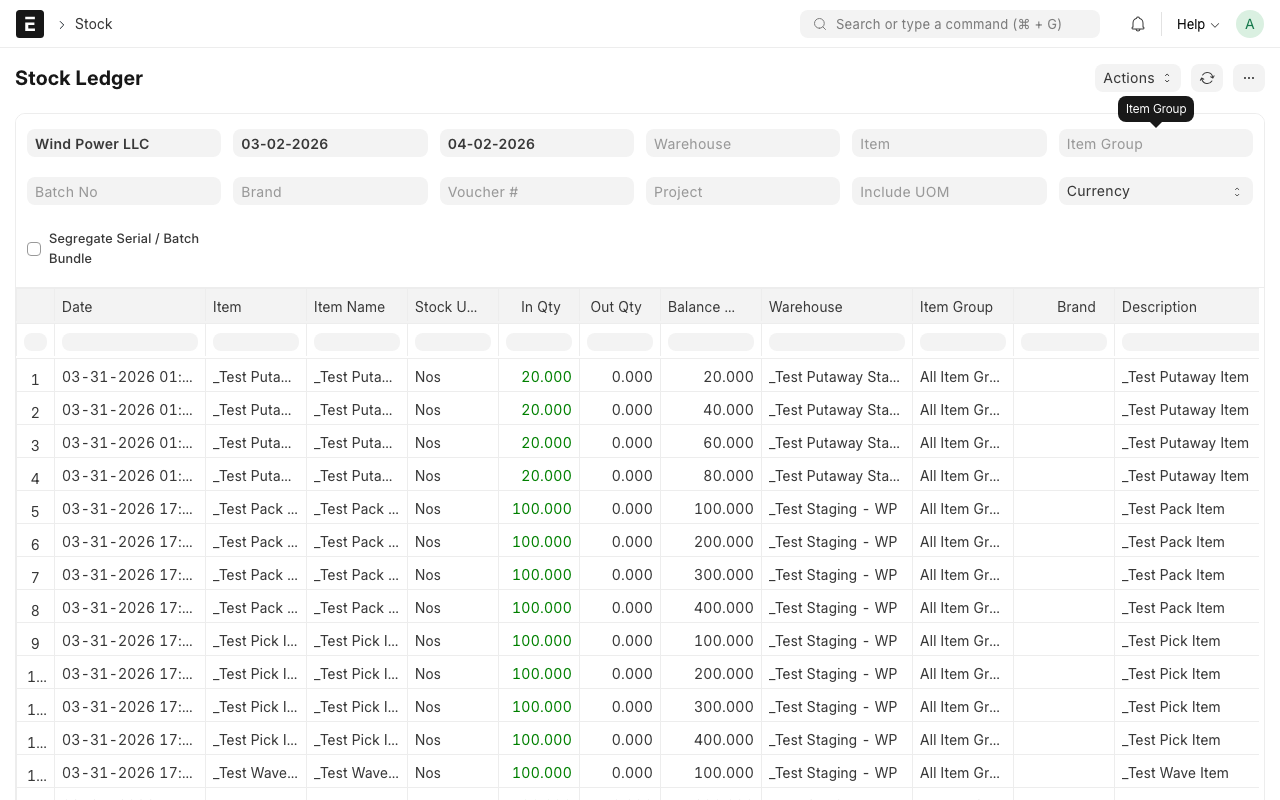
The report shows:
| Column | What It Means |
|---|---|
| Date | When the movement happened |
| Item | Which product was moved |
| Warehouse | Which zone or bin |
| Qty Change | How many units were added (+) or removed (-) |
| Balance Qty | The running total after this movement |
| Voucher Type | What caused the movement (Stock Entry, Delivery Note, etc.) |
INFO
The Stock Ledger is your audit trail. If stock numbers look wrong, use this report to trace every movement and find where the discrepancy happened.
Stock Ageing Report
What is it?
The Stock Ageing report shows how long items have been sitting in the warehouse. This is useful for:
- Finding slow-moving stock that might need attention
- Identifying items approaching expiry
- Billing clients for long-term storage
How to Use It
- Type Stock Ageing in the search bar and click on the report
- Set the filters (Company, Warehouse, Item)
- Click Refresh
The report groups items by age: 0-30 days, 30-60 days, 60-90 days, and 90+ days.
Batch-Wise Balance Report
What is it?
The Batch-Wise Balance report shows stock levels broken down by batch or lot number. This is essential for:
- Items with expiry dates
- Tracking which batches are in stock
- FEFO picking decisions
How to Use It
- Type Batch-Wise Balance in the search bar and click on the report
- Set the filters (Company, Item, Warehouse)
- Click Refresh
The report shows each batch separately with its quantity and expiry date.
TIP
Use this report to quickly check which batches are expiring soon. Sort by expiry date to see the most urgent items at the top.
Delivery Notes
What is it?
A Delivery Note is a record of goods that have been shipped out of the warehouse. It is created automatically when a Pack Task is completed.
How to View Delivery Notes
- Type Delivery Note in the search bar and click on Delivery Note List
- Filter by:
- Customer -- See shipments for one client
- Date -- See shipments for a specific period
- Status -- Draft, Submitted, Cancelled
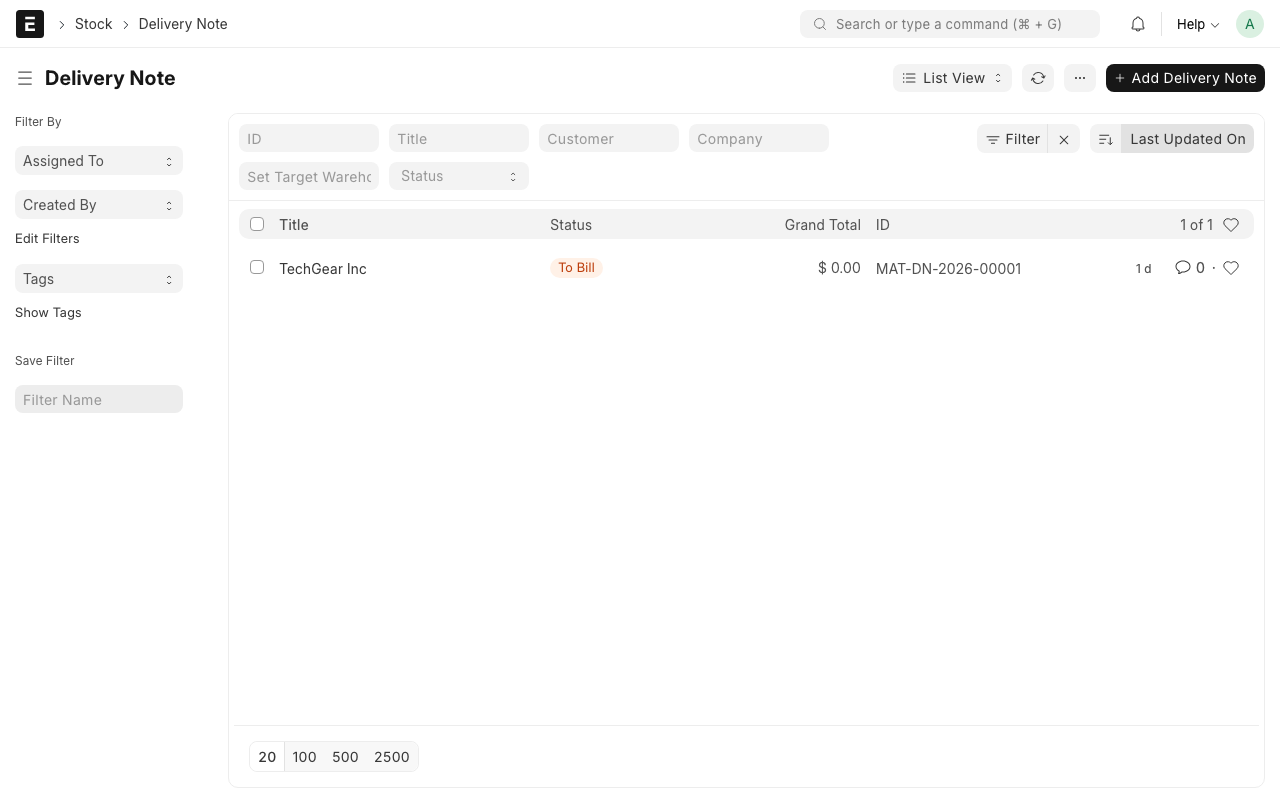
Each Delivery Note shows:
- Customer -- Who the goods were shipped to
- Items -- What was shipped and how much
- Posting Date -- When the shipment was made
- Shipping Address -- Where it was sent
Item Shortage Report
What is it?
The Item Shortage report shows items where demand (from Client Orders) exceeds available stock. This helps you know what needs to be reordered or restocked.
How to Use It
- Type Item Shortage in the search bar and click on the report
- Review the list of items where ordered quantity exceeds stock quantity
Tips for Using Reports
TIP
Bookmark your most-used reports. Click the star icon next to a report name to add it to your favorites for quick access.
TIP
Export to spreadsheet. Most reports have a download button that lets you export the data as a CSV or Excel file. Use this to share reports with clients or management.
WARNING
Reports show data as of the moment you run them. If warehouse activity is happening (receiving, picking, etc.), the numbers may change. For accurate end-of-day numbers, run reports after all daily activity is complete.
Quick Reference: Which Report to Use
| I want to know... | Use this report |
|---|---|
| How much stock do we have? | Stock Balance |
| What happened to stock today? | Stock Ledger |
| How old is our stock? | Stock Ageing |
| What batches are in stock? | Batch-Wise Balance |
| What shipped out recently? | Delivery Notes |
| What items are running low? | Item Shortage |